In recent months, cybersecurity authorities have sounded the alarm over a surge in fake virus alerts flooding users’ screens worldwide. These deceptive pop-ups mimic legitimate antivirus or operating system warnings, falsely claiming that a device is infected or compromised. Their true purpose, however, is not to protect users but to manipulate them, pushing unsuspecting victims to click malicious links, download harmful software, or call fraudulent “tech support” numbers.
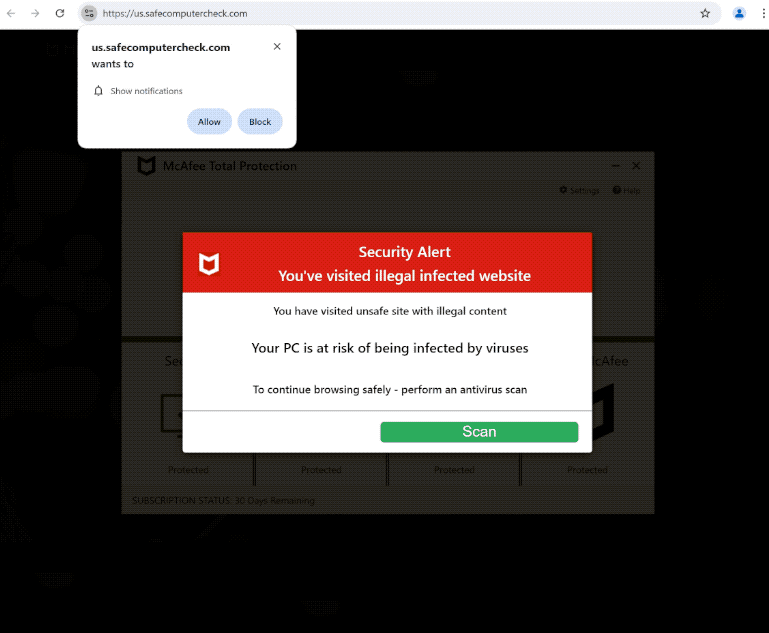
Fake Virus Alerts: A Growing Scam Threat
Earlier in 2025, the Swiss National Cyber Security Centre (NCSC) reported a sharp rise in user reports of pop-up warnings that claim a computer or device is infected by a virus or other serious security issue. These alerts, however, do not originate from the operating system or reputable antivirus software. They are, in fact, scams designed to trick users.
The NCSC observed that for the 23rd week in a row, it received over 1,000 reports of cyber incidents, and in nine out of ten of them, the root cause was a fraud attempt, spam, or phishing rather than genuine malware. During one week (week 24), they recorded 22 actual hacking reports and just six reports of a true malware infection.
This trend underscores how cybercriminals are leveraging fear and urgency via fake warnings to manipulate users rather than relying on traditional malware distribution alone.
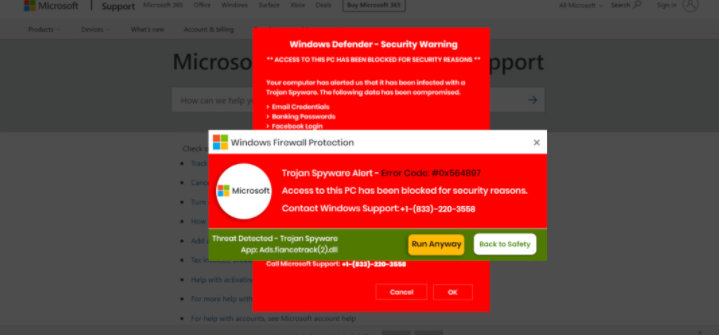
How the fake virus alert scam works
The way these fake virus alerts work is rather simple. A website displays a pop-up or browser push notification that claims something like: “Your computer is damaged by suspicious programs!”. The user is then prompted to click on a link, download software, or call a support number to “fix” the problem. In reality, those links may install malware (or at least spyware) or lead to tech-support scams.
These alerts often appear because a website asked for permission to send push notifications. If a user, intentionally or accidentally, gives this permission, the site can push unrealistic alerts to the user’s browser. It should be emphasised that genuine security alerts are not shown by the browser.
Some variants also lead to fake “support hotlines” where malicious scammers impersonate technicians working for companies like Microsoft or Apple, request remote access to users’ systems, and pressure them into paying for unnecessary services.
There are several reasons why these fake virus alerts are proving effective. First of all, these fake virus alerts often use alarming language to scare the user and prompt them into acting urgently. Users may see a scary red warning and assume their system is compromised. Language like “your computer is infected” or “sensitive data at risk” triggers panic and forces users to react.
What’s more, these scams abuse the push notifications feature, which allows the fake virus alerts to appear similarly to where legitimate system alerts appear. Once a site has permission to send notifications, it can show fake alerts, and the user may not recognise that the alert is coming via the browser rather than the OS.
Many users also do not have the technical knowledge to immediately distinguish a genuine system alert from browser-generated pop-ups, especially if the scam abuses the “push notifications” feature. These alerts may also be bombarded at users repeatedly, which may overwhelm users, and they would be less likely to question them.
Recommendations to avoid falling victim to a fake virus alert scam
There are several ways users can identify and protect themselves from fake virus alerts. The biggest red flag is the alert appearing in a web browser or via a browser notification. Legitimate security software or OS notifications appear outside the browser interface.
Users should never click links in these alerts, never enter personal information, and never download files prompted by them. Instead, users should close the browser tab or the entire browser if the alert appears. If the browser is unresponsive, users can use Task Manager (Windows) or Force Quit (Mac) to close it.
But ultimately, the most effective protection is to disable push notifications from untrusted websites. Only legitimate and safe sites should be given permission to show notifications.
Here’s how to disable or manage push notifications in popular browsers:
Google Chrome:
Navigate to Settings → Privacy and security → Site settings → Notifications. You can either block all sites from sending notifications or review your “Allowed” list and remove any suspicious ones.
Safari (macOS):
Go to Safari → Settings → Websites → Notifications. You can either block all sites from sending notifications or review your “Allowed” list and remove any suspicious ones.
Firefox:
Under Settings → Privacy & Security → Permissions → Notifications → Settings. You can either block all sites from sending notifications or review your “Allowed” list and remove any suspicious ones.
Microsoft Edge:
Open Settings → Cookies and site permissions → All permissions → Notifications. You can either block all sites from sending notifications or review your “Allowed” list and remove any suspicious ones.
Here are additional tips for users to protect themselves from fake virus alerts:
- Be sceptical of scary pop-ups that claim your system is infected and demand immediate action. Check whether the alert is coming from your OS/antivirus or simply from a browser tab.
- Review and manage browser notification permissions: If you haven’t allowed a site to send notifications (or don’t recognise it), block or remove it.
- Avoid clicking links or downloading files from unexpected alerts. Instead, manually open your antivirus software and run a scan if you’re concerned.
- Don’t call any phone number shown in a sudden “technical support” alert. Reputable tech companies rarely initiate support calls in that manner.
- Keep your software updated. Update browsers, OS, anti-malware tools, and any installed apps.
- Use an ad-blocker or pop-up blocker in your browser, especially if you often use unfamiliar/ad-heavy websites.
- Educate family members or colleagues, especially those with less technical experience, about these scams and how they work.
The rise of fake virus alerts highlights how cyber-threats are evolving away from purely technical exploits to more psychological and social engineering attacks. The simple act of enabling browser notifications, something many of us click through without thinking, provides an entry point for scammers. The good news is that by disabling or carefully managing browser push notifications, staying alert to suspicious alerts, and maintaining healthy browsing practices, users can dramatically reduce their risk.