singleclick-feed.com is a generic scam website that tries to trick users into allowing ads on the desktop. To do that, it misuses a legitimate browser feature that allows sites with permission to show notifications. This is why you will get a browser alert saying “singleclick-feed.com wants to show notifications” when you get redirected to the site. If you click “Allow”, the site will start spamming ads on your desktop. Fortunately, you can easily revoke the permission if you have granted it.
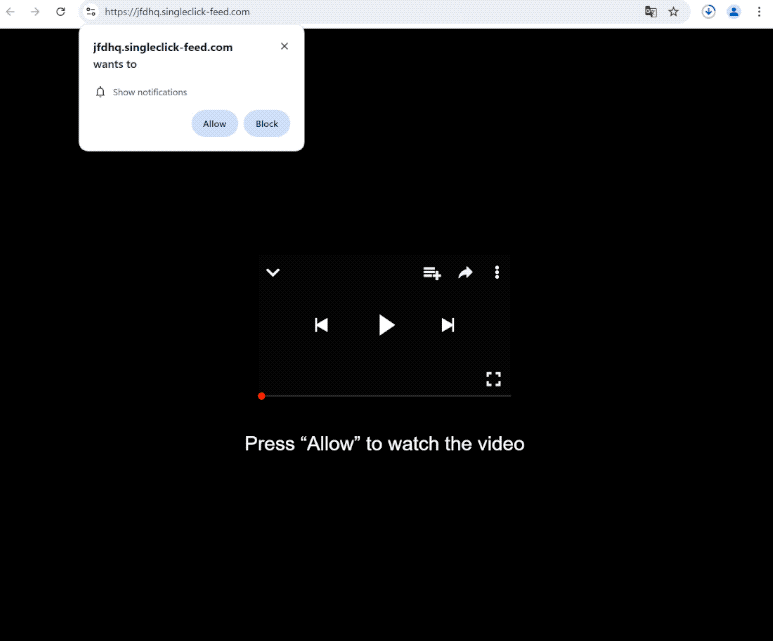
When you visit the site, your browser will prompt you with a notification asking for permission to show alerts from singleclick-feed.com. While this can be a legitimate feature, it is often misused by deceptive websites. If you click “Allow,” singleclick-feed.com could display unwanted advertisements on your desktop. These ads might mimic genuine system notifications and appear in similar spots, which can be confusing and lead users to interact with them. Engaging with these notifications could put you at risk of encountering harmful content, including scams and malicious threats.
If you accidentally granted permission to singleclick-feed.com, don’t worry—you can easily revoke it in your browser’s settings. We’ve included instructions for navigating your browser’s settings at the end of this report to help you if needed.
Why are you redirected to sites like singleclick-feed.com?
If you’re being redirected to sites like singleclick-feed.com, it’s likely due to either adware or visiting high-risk websites that feature a lot of ads. For instance, sites that contain pirated or adult content often bombard users with ads regardless of what they click. Fortunately, you can easily block these ads and redirects by using a reliable ad blocker.
Frequent redirects to singleclick-feed.com and similar sites may indicate that you have adware installed, which can often happen unintentionally through software bundling. This means that adware can come bundled with popular free applications as additional offers, and these can be installed alongside the main program without your explicit consent.
While these additional offers are technically optional, they need to be manually unchecked to avoid installation. Unfortunately, since these options are often hidden in settings that users typically overlook, many don’t realize they’re there. This is part of why software bundling is a contentious method of installation.
Remember that these offers are always optional. By being attentive during the installation of free programs, you can skip unnecessary installations. It’s important to choose Advanced (Custom) settings instead of the Default (Basic) ones during installation. The default settings usually suggest that you allow everything to install without your explicit permission. Advanced settings will clearly show any extra offers and let you uncheck anything you don’t want installed. It’s best to avoid added offers, even if they appear beneficial at first.
Legitimate software does not rely on bundling for installation. Antivirus programs often flag these bundled offerings as potential risks. Unchecked installations of free programs can clutter your computer with adware and other unwanted software.
How to remove singleclick-feed.com notifications?
We strongly recommend scanning your computer with an anti-virus program to check for adware infections if you have been redirected several times. Adware can be quite persistent and difficult to remove manually, and using an anti-virus program would make the process much easier and quicker. If you want to prevent future redirects and random ads, make sure to install a good adblocker program.
If you have given permission to singleclick-feed.com to show you notifications, you need to revoke this permission via your browser’s settings. This is not difficult to do but you can use the instructions provided below if you need assistance with navigating settings.
Make sure to review all sites that have permission to show notifications, and remove singleclick-feed.com, as well as any other sites that you do not recognize. If you do not intend to use this feature at all, you can also turn off notification requests altogether.
If you have given the site permission to show notifications, here’s how to revoke it:
- Mozilla Firefox: Open the menu (the three bars at the top-right corner), click Options, then Privacy & Security. Scroll down to Permissions, press Settings next to Notifications, and remove singleclick-feed.com and any other questionable websites from the list. It’s possible to permanently turn off push notification requests by checking the “Block new requests asking to allow notifications” box in the same Notifications settings.
- Google Chrome: Open the menu (the three dots top-right corner), then Settings, then Privacy and security, then Site Settings. Click on Notifications under Permissions, and remove singleclick-feed.com and any other questionable websites from the list. It’s possible to permanently turn off push notification requests by toggling off “Sites can ask to send notifications”.
- Microsoft Edge: Open the menu (the three dots top-right corner), then Settings, then Cookies and site permissions, then Notifications. Review which sites have permission and remove singleclick-feed.com and any other questionable websites from the list. It’s possible to permanently turn off push notification requests by toggling off “Ask before sending”.
Incoming search terms:
Site Disclaimer
2-remove-virus.com is not sponsored, owned, affiliated, or linked to malware developers or distributors that are referenced in this article. The article does not promote or endorse any type of malware. We aim at providing useful information that will help computer users to detect and eliminate the unwanted malicious programs from their computers. This can be done manually by following the instructions presented in the article or automatically by implementing the suggested anti-malware tools.
The article is only meant to be used for educational purposes. If you follow the instructions given in the article, you agree to be contracted by the disclaimer. We do not guarantee that the artcile will present you with a solution that removes the malign threats completely. Malware changes constantly, which is why, in some cases, it may be difficult to clean the computer fully by using only the manual removal instructions.