

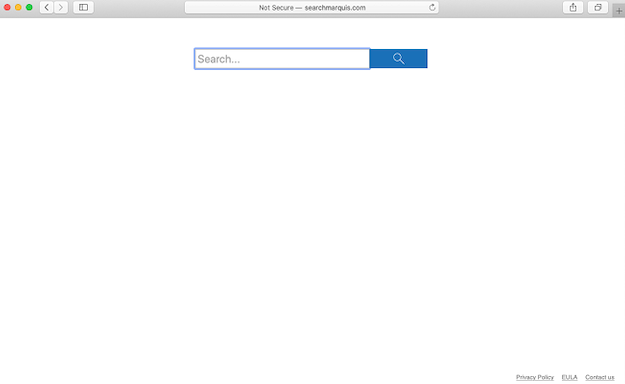
If you’ve ever launched your browser on a Mac and discovered that your preferred search engine was replaced with searchmarquis.com, your homepage changed, or your searches keep being redirected to strange websites, you may be dealing with the browser hijacker Search Marquis. This piece of software acts like adware and takes over control of the browser, often showing intrusive ads, redirecting you to dubious web pages, and even exposing you to potential phishing attacks.
What is Search Marquis?
Search Marquis is classified as a browser hijacker, a form of malware (or potentially unwanted application, PUA) that alters browser settings without your informed consent. On a Mac, it typically shows up by replacing the default search engine, new tabs, and the default search engine. In this case, it’s searchmarquis.com.
The threat here isn’t only the annoyance of being redirected to unwanted pages. Once your browser has been tampered with, your online searches may be manipulated, your data may be exposed, and you may inadvertently click on links or ads that lead to phishing, further malware infections, or even ransomware.
It’s easy to dismiss browser hijackers as mere annoyances, but the reality is they open up your system to serious risk. Search Marquis doesn’t just redirect your browser; it can deliver malicious advertising (adware), which itself can lead to further malicious downloads, tracker software that collects your data without consent, or links to phishing pages that attempt to steal credentials or financial information.
Because the hijacker infiltrates core parts of your Mac (launch agents, login items) and alters browser settings, it has the potential to persist even after some obvious deletions. If left unchecked, it may undermine not just your browsing experience but also overall system security.
How to recognise if your Mac is infected
There are several tell-tale signs that your Mac has been compromised by this hijacker. One of the most obvious is that every time you open your browser, you end up being redirected to a search engine you didn’t choose (in this case, searchmarquis.com) instead of your usual one.
Another symptom is an increase in intrusive ads, pop-ups, banners, or sponsored links that look odd or unfamiliar, often connected with questionable services and websites. These ads often appear when you didn’t expect them and seem unrelated to your usual browsing.
You might also see that your search results page is dominated by “sponsored” links, often with strange URL structures (dashes, numbers, unfamiliar domains) and fewer normal organic results. Redirects to other suspicious websites or unrecognised browser extensions are further indicators.
How to prevent a browser hijacker infection
Prevention is always better than a cure. To avoid falling victim to Search Marquis or a similar browser hijacker, you need to develop good browsing and installation habits. When installing free programs, make sure you use Advanced settings and deselect all added offers.
Installing a good antivirus that monitors in real time can stop threats before they become fully entrenched. And keeping your operating system and software up to date is essential, since many threats exploit known vulnerabilities in outdated versions of macOS or browsers. Developers regularly release security patches that plug those holes, so neglecting updates makes your device more vulnerable to malware.
Another key precaution is exercising caution when clicking on adverts or links. Malicious actors often hide hijacker installers behind fake ads or malicious pop-ups. Avoid opening email attachments or links from unknown senders, and be especially cautious on social media, where compromised accounts may promote malicious links.
Lastly, review browser extensions and plugins regularly. If you see something you don’t remember installing, investigate it. Browser hijackers often piggyback on harmless-looking extensions or install themselves as one. Removing unknown or unused extensions reduces your attack surface.
Remove Search Marquis using antivirus software
While there is a manual removal route, the most reliable and straightforward way to remove Search Marquis is to use a reputable antivirus or antimalware tool. A good security program will scan the entire system and automatically detect and remove the malicious code, then help restore browser settings and protect against reinfection.
The process generally involves running a full system scan, following the removal instructions, resetting your browser(s), and rebooting your computer.
Activating real-time protection is important too, because although the hijacker might be removed once, without continuous protection, the system remains vulnerable to further attacks or reinstallation of similar threats.
Manual Search Marquis removal
For those who prefer a hands-on approach, you can remove Search Marquis manually. However, manual removal must be thorough because simply deleting one file does not guarantee the hijacker will be fully removed. Any leftover components may allow it to return or persist in some form.
The process begins by deleting suspicious applications: open Finder, navigate to the Applications folder, look for the Search Marquis-related program, and drag it to the Bin, then empty the Bin. This removes the main application but not necessarily the associated background agents or browser modifications.
Next, you need to check login items and system extensions: open the Apple menu, go to System Settings, then General → Login Items (and Extensions), locate any entries referencing Search Marquis and remove them. This prevents the hijacker from automatically launching when you start your Mac.
Then you must remove any installed files that launch at boot or as background processes: in Finder, use the “Go to Folder” command and check folders like ~/Library/LaunchAgents, /Library/LaunchDaemons, /Library/Application Support, ~/Library/Application Support. Look for files whose names include “Search Marquis” (or similar suspicious names), drag them to the Bin, and then restart your Mac.
Finally, you need to restore your browser environment. The hijacker may have changed search engines, new-tab pages, or installed extensions. For example, in Safari, go to Safari → Settings → Privacy → Manage Website Data, then remove all data. In Chrome, open Settings → Advanced → Reset Settings → Restore settings to their original defaults. In Firefox, go to Help → More Troubleshooting Information → Refresh Firefox. After the reset, restart the browser.
Site Disclaimer
2-remove-virus.com is not sponsored, owned, affiliated, or linked to malware developers or distributors that are referenced in this article. The article does not promote or endorse any type of malware. We aim at providing useful information that will help computer users to detect and eliminate the unwanted malicious programs from their computers. This can be done manually by following the instructions presented in the article or automatically by implementing the suggested anti-malware tools.
The article is only meant to be used for educational purposes. If you follow the instructions given in the article, you agree to be contracted by the disclaimer. We do not guarantee that the artcile will present you with a solution that removes the malign threats completely. Malware changes constantly, which is why, in some cases, it may be difficult to clean the computer fully by using only the manual removal instructions.