

A browser hijacker is a form of unwanted software that alters browser settings to control how users navigate the web. It forces browsers to load specific pages, often filled with advertisements or search results from unverified sources. In Safari, this behaviour is commonly referred to as the Safari redirect virus, a term used to describe a hijacker that takes over the browser’s homepage and search settings without consent.
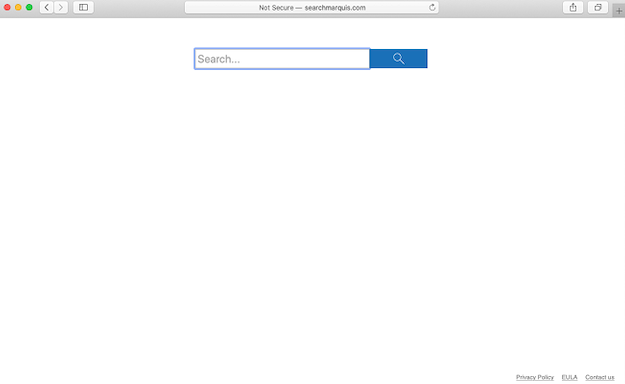
What distinguishes a hijacker from legitimate software is intent. While ordinary extensions or search tools operate with user approval, a hijacker installs covertly and manipulates Safari’s configuration files. The result is a noticeable change in how pages load. Instead of opening the chosen homepage or preferred search engine, the browser redirects through unfamiliar domains before displaying results. These redirects often generate revenue for the software developers, who profit from the artificial web traffic they create.
Users frequently describe the experience as confusing or frustrating. Pages take longer to load, searches are filled with sponsored results, and pop-ups appear more frequently. Behind the scenes, these unwanted programs can track browsing habits, collect data, and send it to external advertising networks. The data may include search terms, site visits, approximate location, and device details. Though hijackers are not classified as malicious software, the privacy risks they introduce make them a serious nuisance.
The Safari redirect virus demonstrates how pervasive this issue has become on macOS. Because Apple’s operating system is perceived as secure, many users overlook the need for additional protection or regular browser maintenance. Hijackers take advantage of this by embedding themselves in extensions, configuration profiles, and system folders. Once active, they maintain persistence by resetting Safari’s settings after each restart or update.
While the software does not harm the Mac directly, its effect is disruptive. Over time, continuous redirects can degrade performance, cause Safari to freeze, and generate repeated error messages. Some versions may even reroute users through multiple advertising networks before landing on the intended page, a process that consumes bandwidth and exposes users to unreliable websites. The longer the hijacker remains installed, the greater the amount of browsing data it can collect.
What makes hijackers particularly difficult to identify is that they often mimic legitimate browser tools. A redirect might appear under the name of a common search engine or as a Safari extension claiming to optimize browsing speed. By blending into ordinary browser functions, the hijacker remains unnoticed until users start investigating why Safari behaves differently. The issue is widespread enough that Apple support communities frequently receive reports of persistent redirects even after full resets.
In short, a browser hijacker is not a traditional virus but a persistent and intrusive program designed to generate revenue through manipulation and data tracking. The Safari redirect variant shows how easily everyday browsing can be interrupted by software that appears harmless at first but gradually erodes control over how the browser operates.
How does a browser hijacker install
Hijackers such as the Safari redirect often reach macOS systems through bundled software packages. These packages are distributed via third-party download sites that offer free applications or utilities. During installation, optional components are included by default, and users who rush through setup without adjusting preferences unintentionally allow the hijacker to install.
In other cases, the redirect arrives through deceptive pop-up messages claiming that Safari or macOS requires an urgent update. Users who follow the prompt end up downloading an installer that modifies browser settings and grants the program administrative permissions. Torrent platforms and unofficial app stores are also common sources of such installers.
The program typically embeds itself within Safari by installing a configuration profile or a hidden background process. This allows it to restore unwanted changes automatically if the user attempts to revert them. Even after uninstalling suspicious extensions, the redirect may persist because the controlling profile remains active in the background.
How to remove a browser hijacker from Mac
In many cases, the easiest way to remove a Safari redirect virus on Mac is to use an anti-virus program. However, manual Safari redirect virus on Mac removal is also possible.
Quick Menu
Step 1. Uninstall Remove Safari Redirect Virus on Mac and related programs.
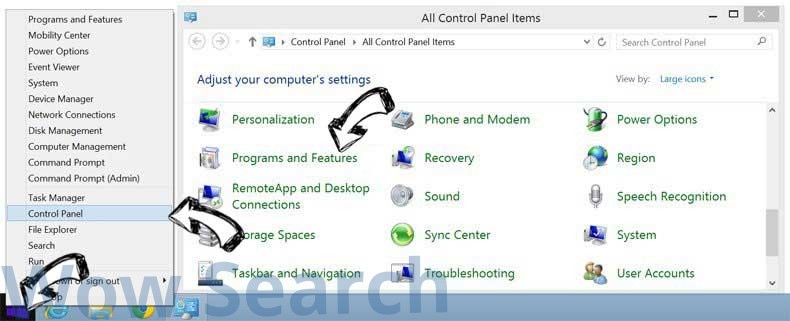
Remove Remove Safari Redirect Virus on Mac from Windows 8
Right-click in the lower left corner of the screen. Once Quick Access Menu shows up, select Control Panel choose Programs and Features and select to Uninstall a software.
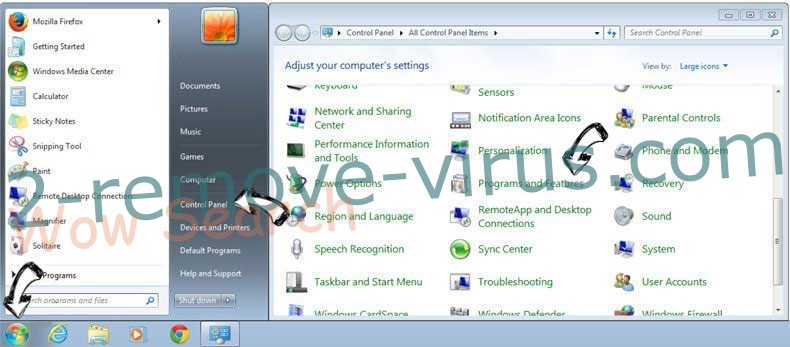
Uninstall Remove Safari Redirect Virus on Mac from Windows 7
Click Start → Control Panel → Programs and Features → Uninstall a program.
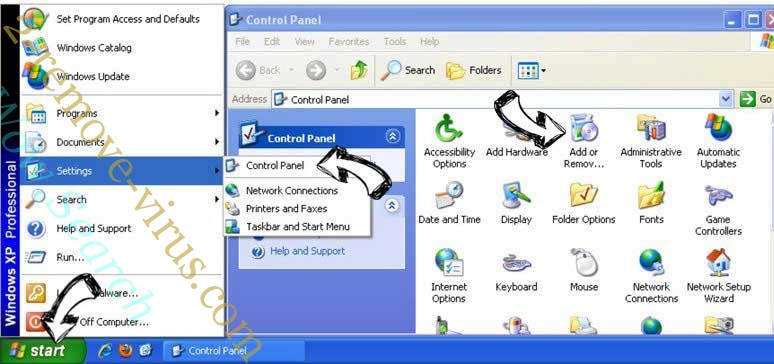
Delete Remove Safari Redirect Virus on Mac from Windows XP
Click Start → Settings → Control Panel. Locate and click → Add or Remove Programs.
Remove Remove Safari Redirect Virus on Mac from Mac OS X
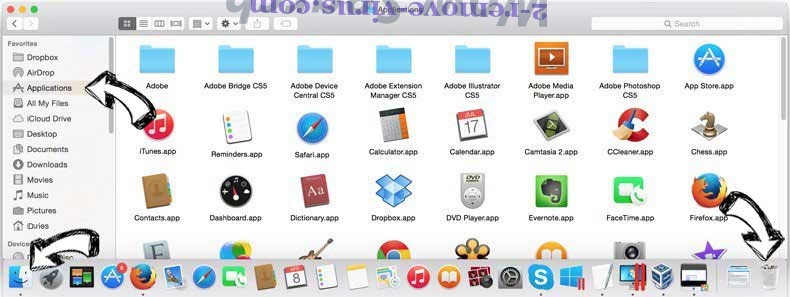
Click Go button at the top left of the screen and select Applications. Select applications folder and look for Remove Safari Redirect Virus on Mac or any other suspicious software. Now right click on every of such entries and select Move to Trash, then right click the Trash icon and select Empty Trash.
Step 2. Delete Remove Safari Redirect Virus on Mac from your browsers
Terminate the unwanted extensions from Internet Explorer
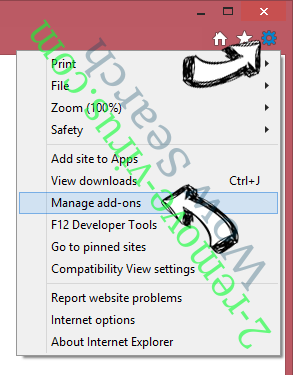
- Tap the Gear icon and go to Manage Add-ons.

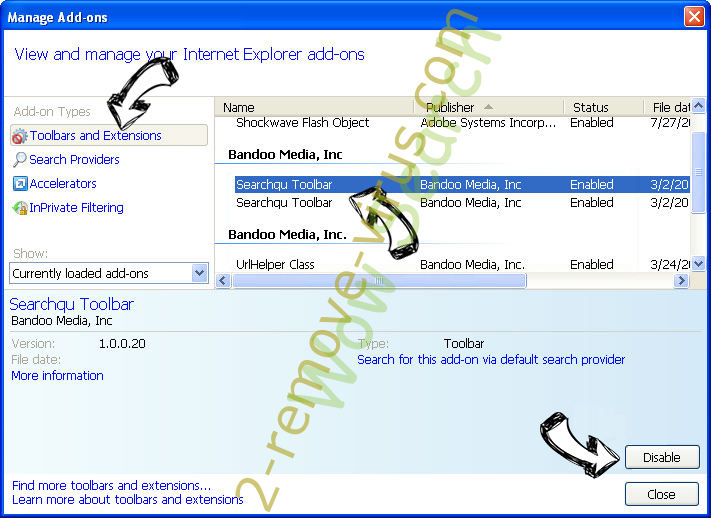
- Pick Toolbars and Extensions and eliminate all suspicious entries (other than Microsoft, Yahoo, Google, Oracle or Adobe)
- Leave the window.
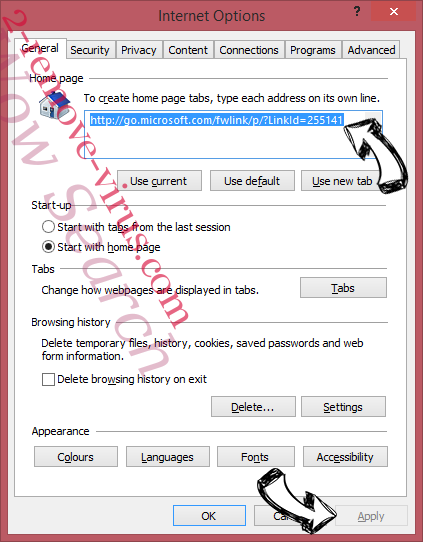
Change Internet Explorer homepage if it was changed by virus:
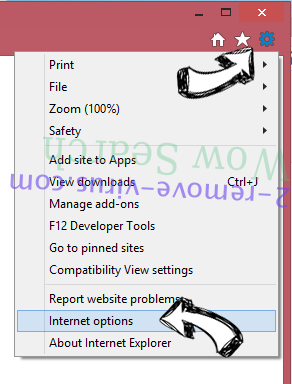
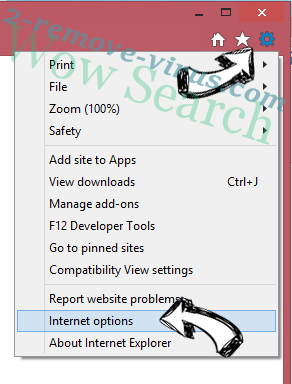
- Tap the gear icon (menu) on the top right corner of your browser and click Internet Options.
- In General Tab remove malicious URL and enter preferable domain name. Press Apply to save changes.
Reset your browser
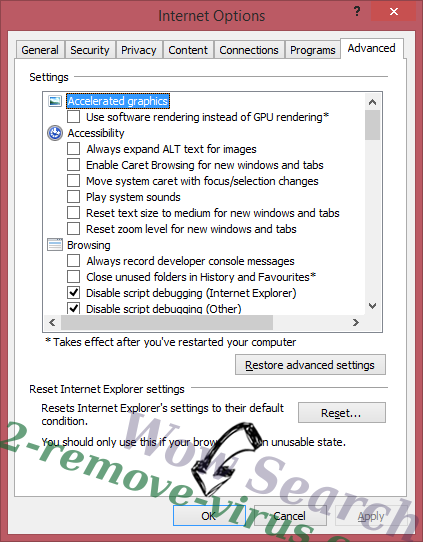
- Click the Gear icon and move to Internet Options.
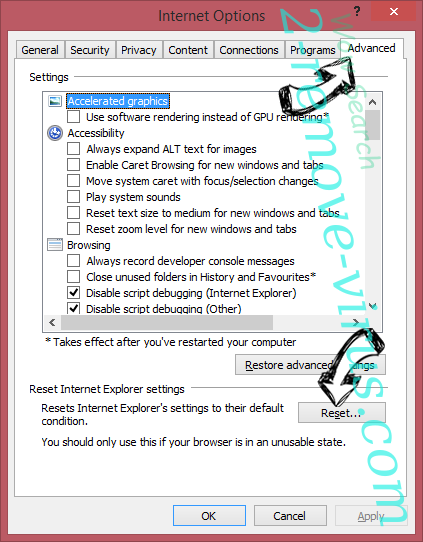
- Open the Advanced tab and press Reset.
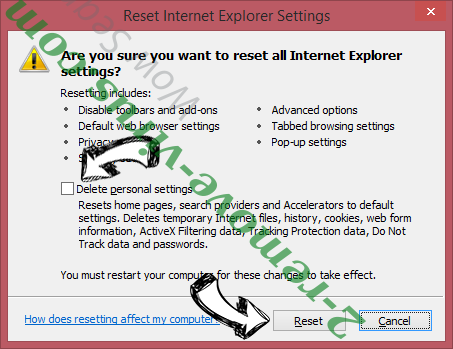
- Choose Delete personal settings and pick Reset one more time.
- Tap Close and leave your browser.
- If you were unable to reset your browsers, employ a reputable anti-malware and scan your entire computer with it.
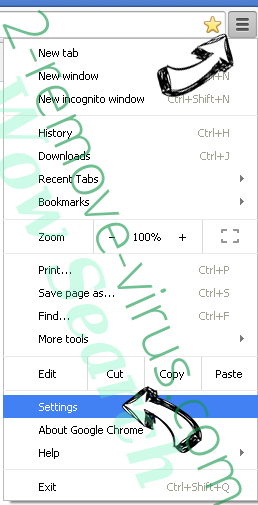
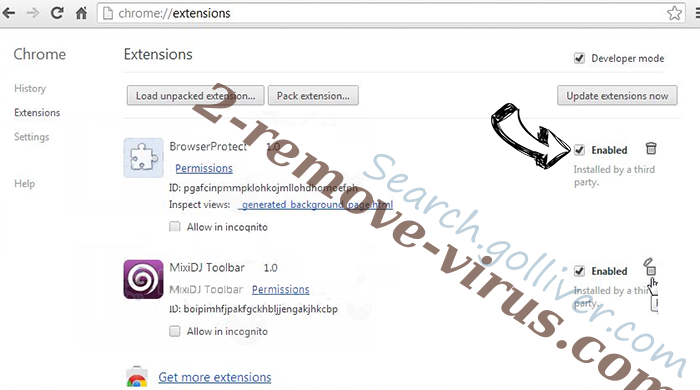
Erase Remove Safari Redirect Virus on Mac from Google Chrome
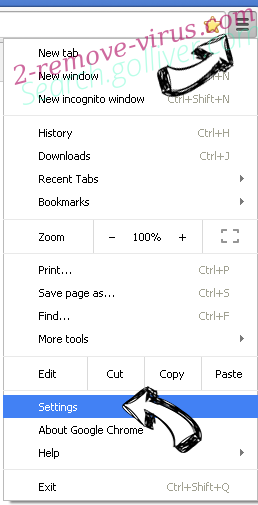
- Access menu (top right corner of the window) and pick Settings.
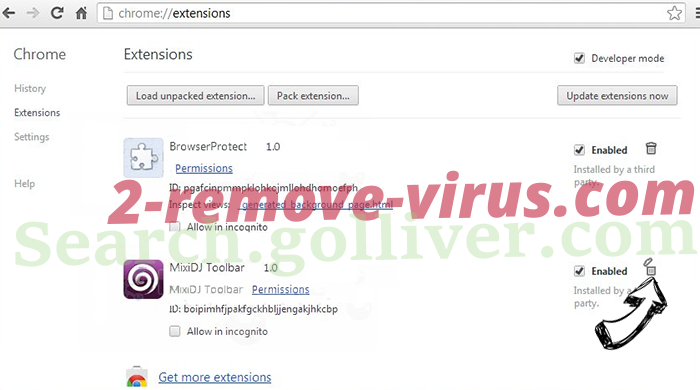
- Choose Extensions.
- Eliminate the suspicious extensions from the list by clicking the Trash bin next to them.
- If you are unsure which extensions to remove, you can disable them temporarily.
Reset Google Chrome homepage and default search engine if it was hijacker by virus
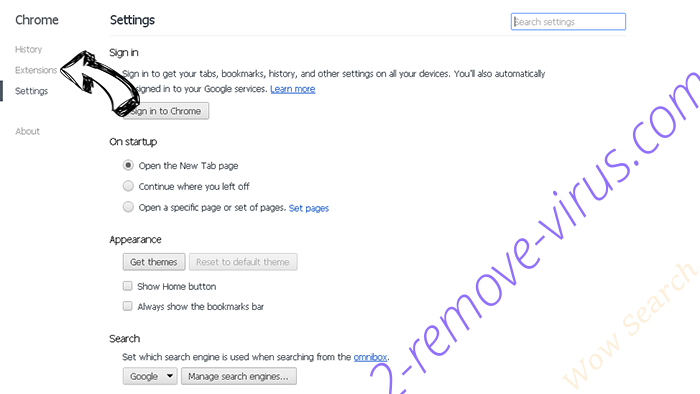
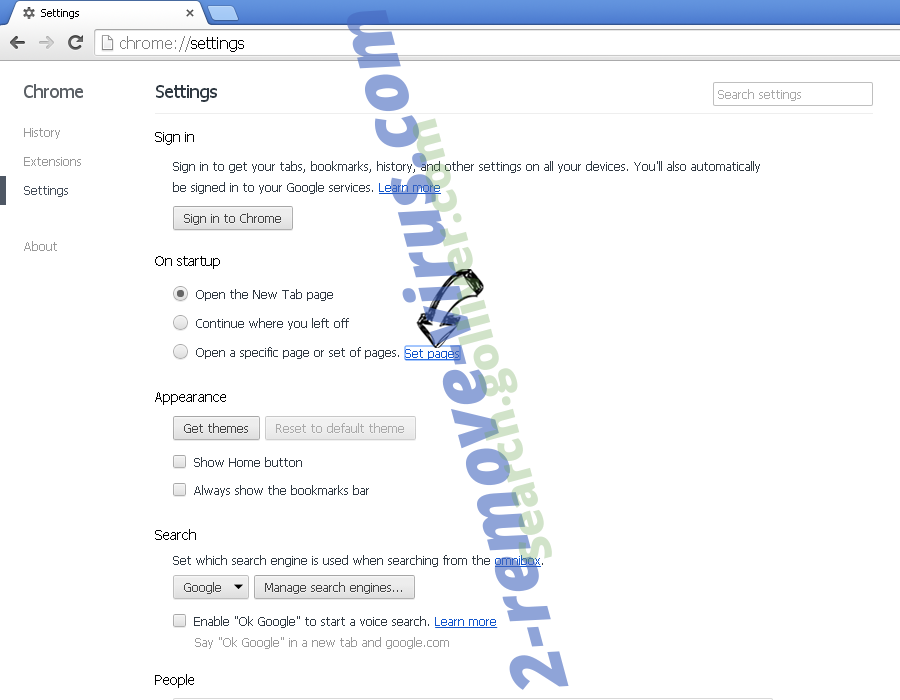
- Press on menu icon and click Settings.
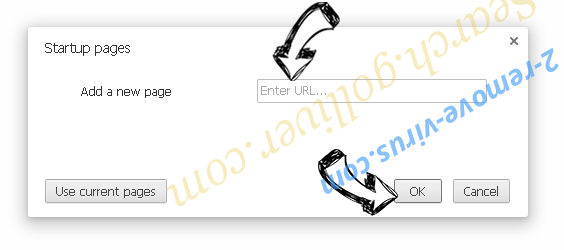
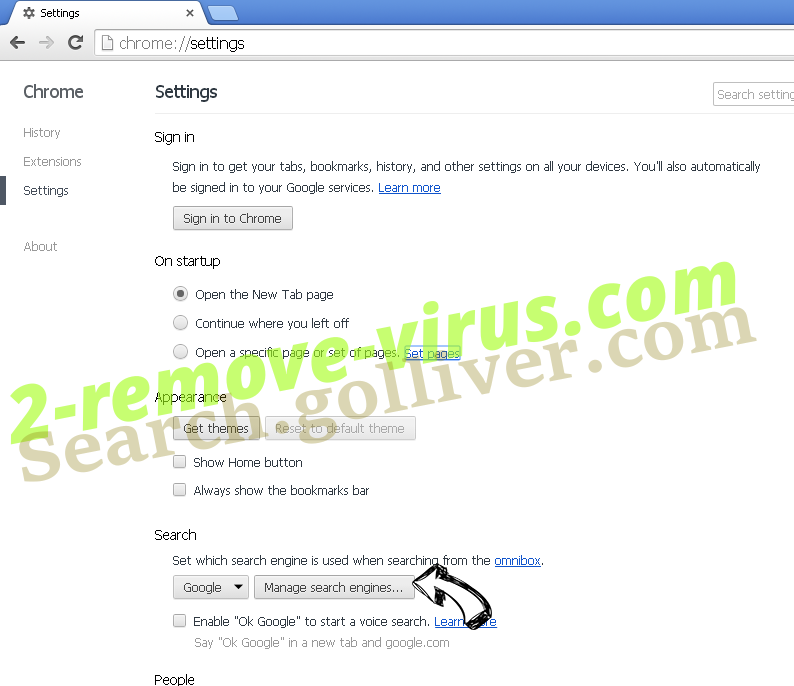
- Look for the “Open a specific page” or “Set Pages” under “On start up” option and click on Set pages.
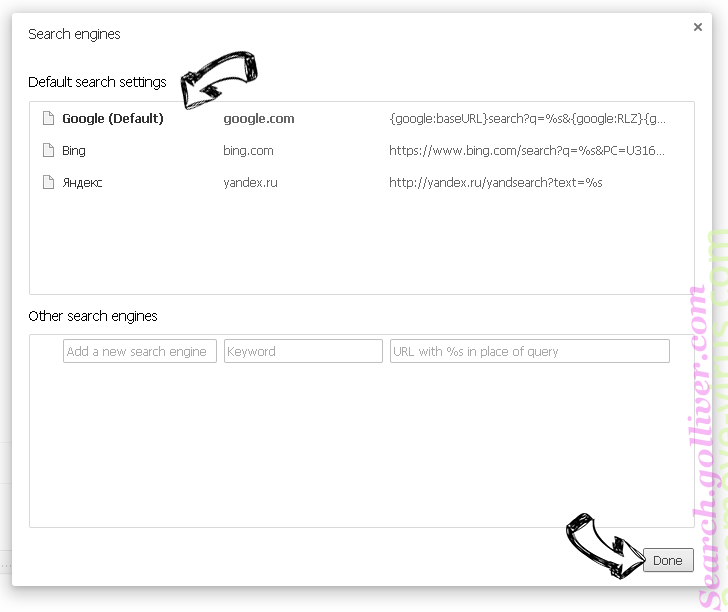
- In another window remove malicious search sites and enter the one that you want to use as your homepage.
- Under the Search section choose Manage Search engines. When in Search Engines..., remove malicious search websites. You should leave only Google or your preferred search name.
Reset your browser
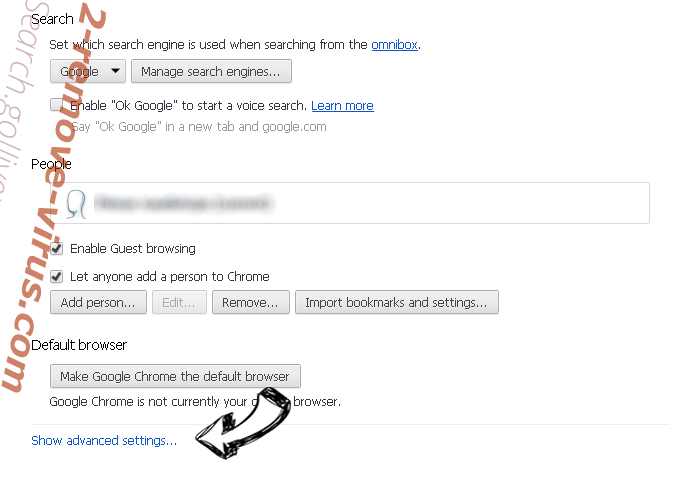
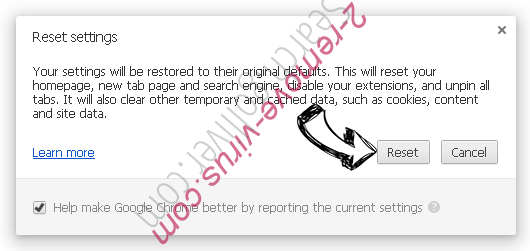
- If the browser still does not work the way you prefer, you can reset its settings.
- Open menu and navigate to Settings.
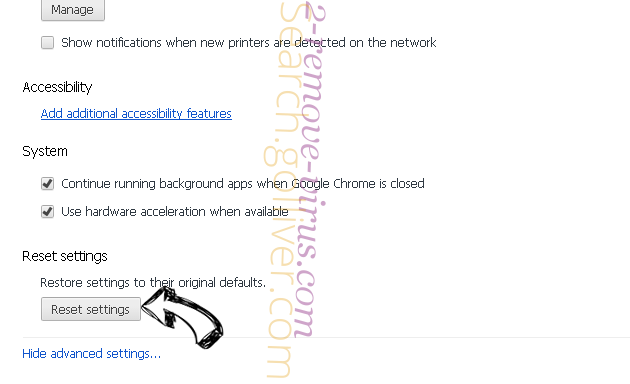
- Press Reset button at the end of the page.
- Tap Reset button one more time in the confirmation box.
- If you cannot reset the settings, purchase a legitimate anti-malware and scan your PC.
Remove Remove Safari Redirect Virus on Mac from Mozilla Firefox
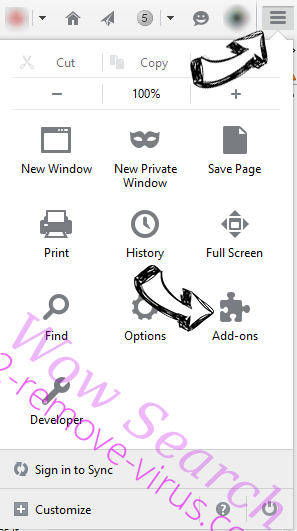
- In the top right corner of the screen, press menu and choose Add-ons (or tap Ctrl+Shift+A simultaneously).
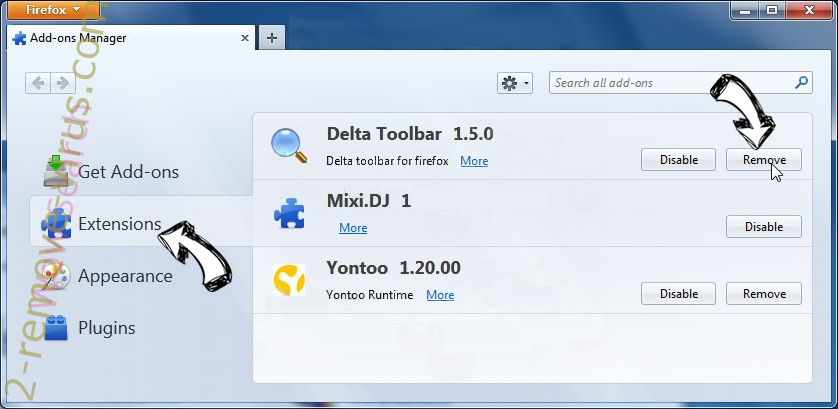
- Move to Extensions and Add-ons list and uninstall all suspicious and unknown entries.
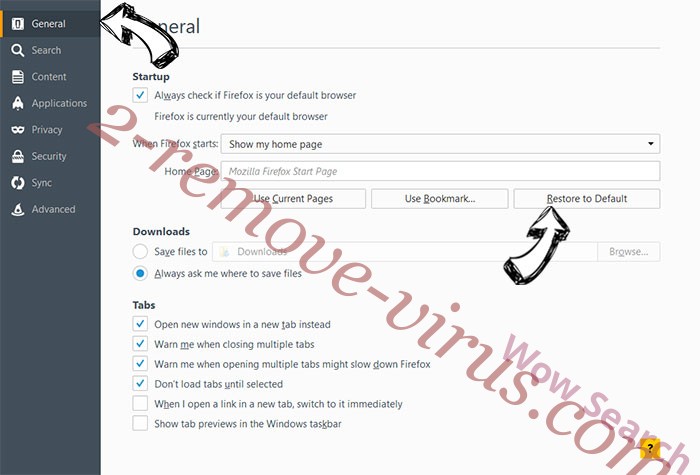
Change Mozilla Firefox homepage if it was changed by virus:
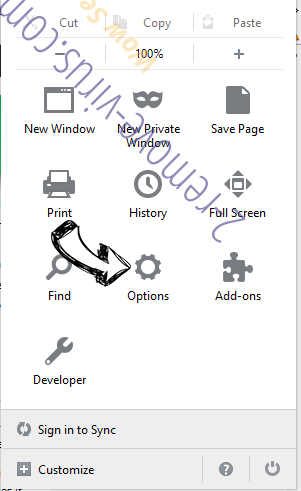
- Tap on the menu (top right corner), choose Options.
- On General tab delete malicious URL and enter preferable website or click Restore to default.
- Press OK to save these changes.
Reset your browser
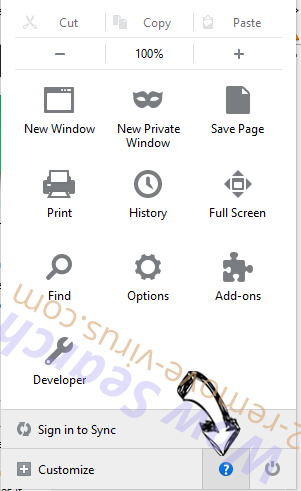
- Open the menu and tap Help button.
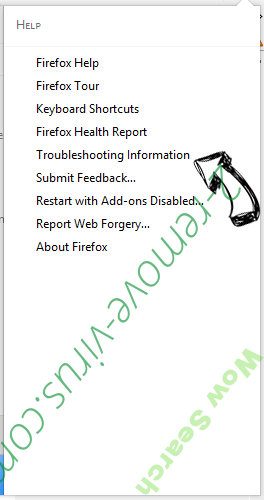
- Select Troubleshooting Information.
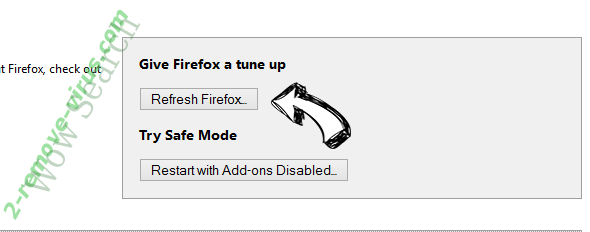
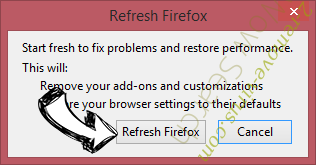
- Press Refresh Firefox.
- In the confirmation box, click Refresh Firefox once more.
- If you are unable to reset Mozilla Firefox, scan your entire computer with a trustworthy anti-malware.
Uninstall Remove Safari Redirect Virus on Mac from Safari (Mac OS X)
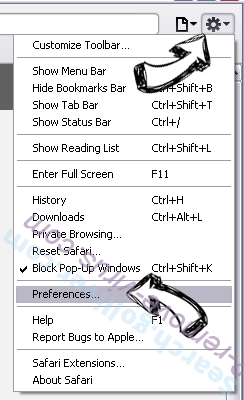
- Access the menu.
- Pick Preferences.
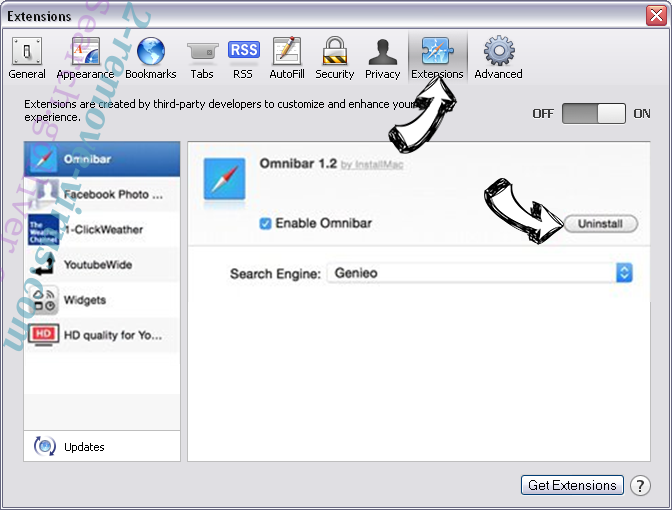
- Go to the Extensions Tab.
- Tap the Uninstall button next to the undesirable Remove Safari Redirect Virus on Mac and get rid of all the other unknown entries as well. If you are unsure whether the extension is reliable or not, simply uncheck the Enable box in order to disable it temporarily.
- Restart Safari.
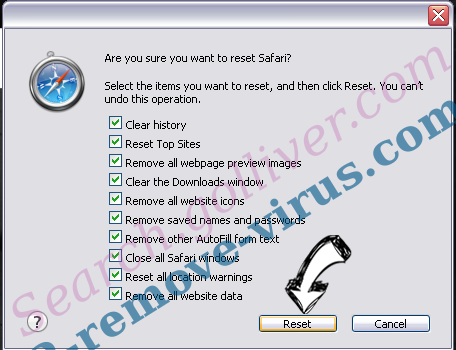
Reset your browser
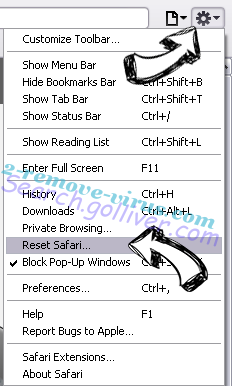
- Tap the menu icon and choose Reset Safari.
- Pick the options which you want to reset (often all of them are preselected) and press Reset.
- If you cannot reset the browser, scan your whole PC with an authentic malware removal software.
Site Disclaimer
2-remove-virus.com is not sponsored, owned, affiliated, or linked to malware developers or distributors that are referenced in this article. The article does not promote or endorse any type of malware. We aim at providing useful information that will help computer users to detect and eliminate the unwanted malicious programs from their computers. This can be done manually by following the instructions presented in the article or automatically by implementing the suggested anti-malware tools.
The article is only meant to be used for educational purposes. If you follow the instructions given in the article, you agree to be contracted by the disclaimer. We do not guarantee that the artcile will present you with a solution that removes the malign threats completely. Malware changes constantly, which is why, in some cases, it may be difficult to clean the computer fully by using only the manual removal instructions.