Quick Search is a browser-hijacking extension that changes browser settings to promote find.flashysearches.com, an illegitimate search engine. Rather than providing an independent search service, the extension redirects users’ searches through this address, interfering with their preferred browsing configuration.
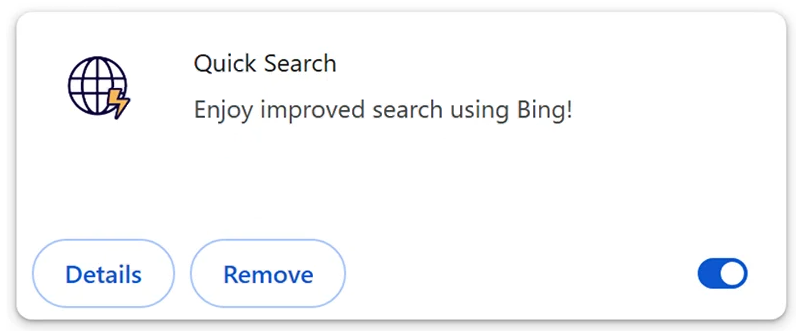
Once installed, Quick Search replaces the browser’s default search engine and new tab URL with find.flashysearches.com. Consequently, searches performed through the browser and newly opened tabs are routed through the promoted domain. Users may notice these changes even if they did not knowingly agree to modify their browser preferences.
The find.flashysearches.com address does not generate its own search results. Instead, it redirects searches to Bing, a legitimate search engine operated by Microsoft. The final destination may vary depending on factors such as the user’s geographical location. Visiting find.flashysearches.com directly also triggers a redirect rather than displaying a functional search interface.
Although users may eventually receive results from a recognized search provider, the additional redirect serves the interests of the browser hijacker’s operators. Such software commonly generates revenue by directing traffic through particular websites, including those associated with advertising arrangements.
Quick Search is promoted through websites such as flashquicksearch.com and theflashsearch.com. These sites advertise the extension as a way to improve online searches using Bing-powered results. However, its actual behavior involves taking control of important browser settings rather than simply providing an optional search feature.
The extension also raises privacy concerns. Browser hijackers commonly have data-tracking capabilities that may allow them to collect browsing histories, search queries, visited website addresses, and other information. Depending on their permissions and functionality, some can potentially access more sensitive data, including cookies and login-related information. However, the exact information collected by Quick Search has not been confirmed.
Another concern is that browser hijackers can employ techniques that make removal more difficult. Some restrict access to relevant settings or reverse changes made by users, causing unwanted search configurations to return. These behaviors are associated with browser hijackers generally and have not all been independently established for Quick Search.
How to avoid installing browser hijackers
Quick Search may reach users through software installers that bundle additional components with legitimate applications. This distribution method can result in unwanted extensions being installed when users overlook optional offers or accept default installation settings without reviewing them.
Other potential distribution channels include misleading advertisements, suspicious download websites, and redirects originating from websites that use questionable advertising networks. Browser notification spam and deceptive promotional pages may also direct users toward unwanted software.
To reduce the likelihood of installing browser hijackers, users should download applications and extensions from official websites or other verified sources. Before adding an extension, it is advisable to examine its requested permissions, developer information, and actual functionality. Promises of faster searches or improved browsing should not be treated as evidence that an extension is trustworthy.
When installing desktop software, users should review the available installation options and decline unrelated applications, toolbars, or browser modifications. Choosing custom or advanced installation settings, when available, can help reveal additional components that might otherwise be overlooked.
Remove Quick Search browser hijacker
Users who encounter unexpected redirects to find.flashysearches.com should inspect their browser’s installed extensions. If Quick Search is present, it should be removed through the browser’s extension management interface. Any other unfamiliar or unwanted extensions should also be investigated.
It’s recommended to use an anti-malware program to remove Quick Search browser hijacker, as these infections can be quite persistent. Once the hijacker has been removed, the affected browser’s settings can be changed as usual/
Offers
Download Removal Toolto scan for Quick SearchUse our recommended removal tool to scan for Quick Search. Trial version of provides detection of computer threats like Quick Search and assists in its removal for FREE. You can delete detected registry entries, files and processes yourself or purchase a full version.
More information about SpyWarrior and Uninstall Instructions. Please review SpyWarrior EULA and Privacy Policy. SpyWarrior scanner is free. If it detects a malware, purchase its full version to remove it.
WiperSoft Review Details WiperSoft (www.wipersoft.com) is a security tool that provides real-time security from potential threats. Nowadays, many users tend to download free software from the Intern ...
Download|moreIs MacKeeper a virus? MacKeeper is not a virus, nor is it a scam. While there are various opinions about the program on the Internet, a lot of the people who so notoriously hate the program have neve ...
Download|moreWhile the creators of MalwareBytes anti-malware have not been in this business for long time, they make up for it with their enthusiastic approach. Statistic from such websites like CNET shows that th ...
Download|more
Quick Menu
Step 1. Uninstall Quick Search and related programs.
Remove Quick Search from Windows 8
Right-click in the lower left corner of the screen. Once Quick Access Menu shows up, select Control Panel choose Programs and Features and select to Uninstall a software.
Uninstall Quick Search from Windows 7
Click Start → Control Panel → Programs and Features → Uninstall a program.
Delete Quick Search from Windows XP
Click Start → Settings → Control Panel. Locate and click → Add or Remove Programs.
Remove Quick Search from Mac OS X
Click Go button at the top left of the screen and select Applications. Select applications folder and look for Quick Search or any other suspicious software. Now right click on every of such entries and select Move to Trash, then right click the Trash icon and select Empty Trash.
Step 2. Delete Quick Search from your browsers
Terminate the unwanted extensions from Internet Explorer
- Tap the Gear icon and go to Manage Add-ons.
- Pick Toolbars and Extensions and eliminate all suspicious entries (other than Microsoft, Yahoo, Google, Oracle or Adobe)
- Leave the window.
Change Internet Explorer homepage if it was changed by virus:
- Tap the gear icon (menu) on the top right corner of your browser and click Internet Options.
- In General Tab remove malicious URL and enter preferable domain name. Press Apply to save changes.
Reset your browser
- Click the Gear icon and move to Internet Options.
- Open the Advanced tab and press Reset.
- Choose Delete personal settings and pick Reset one more time.
- Tap Close and leave your browser.
- If you were unable to reset your browsers, employ a reputable anti-malware and scan your entire computer with it.
Erase Quick Search from Google Chrome
- Access menu (top right corner of the window) and pick Settings.
- Choose Extensions.
- Eliminate the suspicious extensions from the list by clicking the Trash bin next to them.
- If you are unsure which extensions to remove, you can disable them temporarily.
Reset Google Chrome homepage and default search engine if it was hijacker by virus
- Press on menu icon and click Settings.
- Look for the “Open a specific page” or “Set Pages” under “On start up” option and click on Set pages.
- In another window remove malicious search sites and enter the one that you want to use as your homepage.
- Under the Search section choose Manage Search engines. When in Search Engines..., remove malicious search websites. You should leave only Google or your preferred search name.
Reset your browser
- If the browser still does not work the way you prefer, you can reset its settings.
- Open menu and navigate to Settings.
- Press Reset button at the end of the page.
- Tap Reset button one more time in the confirmation box.
- If you cannot reset the settings, purchase a legitimate anti-malware and scan your PC.
Remove Quick Search from Mozilla Firefox
- In the top right corner of the screen, press menu and choose Add-ons (or tap Ctrl+Shift+A simultaneously).
- Move to Extensions and Add-ons list and uninstall all suspicious and unknown entries.
Change Mozilla Firefox homepage if it was changed by virus:
- Tap on the menu (top right corner), choose Options.
- On General tab delete malicious URL and enter preferable website or click Restore to default.
- Press OK to save these changes.
Reset your browser
- Open the menu and tap Help button.
- Select Troubleshooting Information.
- Press Refresh Firefox.
- In the confirmation box, click Refresh Firefox once more.
- If you are unable to reset Mozilla Firefox, scan your entire computer with a trustworthy anti-malware.
Uninstall Quick Search from Safari (Mac OS X)
- Access the menu.
- Pick Preferences.
- Go to the Extensions Tab.
- Tap the Uninstall button next to the undesirable Quick Search and get rid of all the other unknown entries as well. If you are unsure whether the extension is reliable or not, simply uncheck the Enable box in order to disable it temporarily.
- Restart Safari.
Reset your browser
- Tap the menu icon and choose Reset Safari.
- Pick the options which you want to reset (often all of them are preselected) and press Reset.
- If you cannot reset the browser, scan your whole PC with an authentic malware removal software.
Site Disclaimer
2-remove-virus.com is not sponsored, owned, affiliated, or linked to malware developers or distributors that are referenced in this article. The article does not promote or endorse any type of malware. We aim at providing useful information that will help computer users to detect and eliminate the unwanted malicious programs from their computers. This can be done manually by following the instructions presented in the article or automatically by implementing the suggested anti-malware tools.
The article is only meant to be used for educational purposes. If you follow the instructions given in the article, you agree to be contracted by the disclaimer. We do not guarantee that the artcile will present you with a solution that removes the malign threats completely. Malware changes constantly, which is why, in some cases, it may be difficult to clean the computer fully by using only the manual removal instructions.