

What is CoordinatorMedia Malware?
Although CoordinatorMedia is often referred to as malware, it is actually categorized as a potentially unwanted application or adware. It is not surprising, however, that users think of it as malicious, because it enters computers without their notice and bombards them with different advertisements, not all of which are safe. It also collects information related to browsing habits, which can later be sold to third parties. There is no question that you should not hesitate to get rid of CoordinatorMedia Malware as their is no reason to keep it installed. 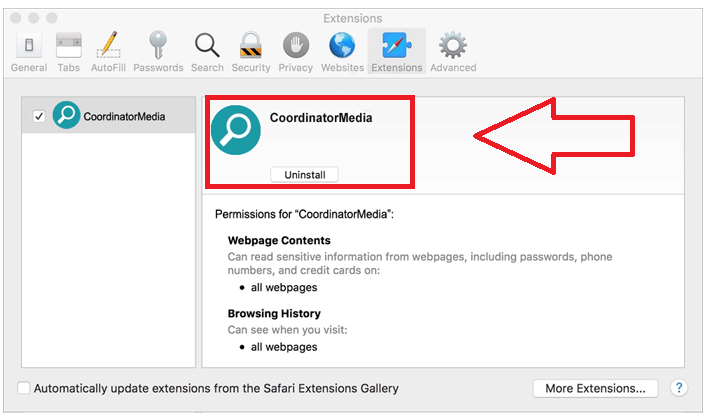
How does CoordinatorMedia work?
Potentially unwanted software travels in freeware and shareware bundles. When users download programs from third-party domains, they are presented with offers of additional apps. These apps are usually ad-supported. If you do not pay attention to the installation wizard, you install these additional apps unwittingly. As long as you are aware of the fact that with every freeware download, you can acquire unwanted programs, you can avoid them by declining all optional offers. Better yet, stay away from third-party hosting sites and only download software from official websites.
Once installed, CoordinatorMedia starts inserting different advertisements into all of your browsers. One site that CoordinatorMedia has specifically been linked to is akamaihd.net, which is used to promote Safe Finder. Other ads will appear in the form of pop-ups, banners, links, coupons, and more. Clicking on these ads can lead to negative results as you may fall victim to a scam or infect your device with malign software. In addition to exposing you to unreliable ads, the adware also alters your browser settings switching your default search engine to Yahoo or a completely unfamiliar site. In order to restore your settings and go back to usual browsing, you will have to terminate CoordinatorMedia Malware.
How to remove CoordinatorMedia Malware?
CoordinatorMedia drops its files into system folders and adds itself into startup programs, which is why manual CoordinatorMedia Malware removal and browser settings modifications do not work. To remove CoordinatorMedia Malware manually, you will have to follow a number of steps presented below. Alternatively, you can use a malware prevention and removal utility to eliminate CoordinatorMedia Malware automatically. Automatic CoordinatorMedia Malware removal is the more efficient solution as it allows you to not only clean your device, but also keep it more secure in the future.
Manual CoordinatorMedia Malware removal
- Restart your computer and hold Shift when the screen is blank
- Once the Apple logo appears, release the button
- You have now entered Safe Mode
- Open System Preferences and go to Profiles
- Select the CoordinatorMedia profiles and delete them
- Move to Downloads folder and check it for suspicious files
- Delete suspicious files (likely downloaded on the same day as CoordinatorMedia)
- Open Finder and go to the following folder names to erase CoordinatorMedia files:
- /Library/LaunchDaemons
- /Library/LaunchAgents
- ~/Library/LaunchAgents
- ~/Library/Application Support
- Make sure that you delete only CoordinatorMedia related files
- Delete CoordinatorMedia app from Applications
Remove CoordinatorMedia Malware from your browsers:
Safari
- Open Safari and select Preferences
- Go to Extensions and uninstall CoordinatorMedia Malware
- To restore your home page, open Safari menu and go to Preferences
- Choose General tab and enter your preferred home page
- Go to Search tab and change your search engine
Google Chrome
- Open Chrome
- Enter “chrome://extensions” in the address bar and press Enter
- In the extensions list, find CoordinatorMedia and click the recycle bin next to it
- To change your search engine, select Chrome button at the top left corner
- Choose Preferences and find the Search options
- Change your search engine
- To change your home page, go back to Preferences and find Appearance
- Find Show Home button and enter your preferred home page
Mozilla Firefox
- Click on the menu and go to Add-ons
- In Extensions, remove CoordinatorMedia Malware
- Enter “about:preferences” in the URL bar and press enter
- Go to Search tab and choose your default search engine
- To change home page, go to Preferences and open General tab
- Type in your preferred URL in the home page field
Offers
Download Removal Toolto scan for CoordinatorMedia MalwareUse our recommended removal tool to scan for CoordinatorMedia Malware. Trial version of provides detection of computer threats like CoordinatorMedia Malware and assists in its removal for FREE. You can delete detected registry entries, files and processes yourself or purchase a full version.
More information about SpyWarrior and Uninstall Instructions. Please review SpyWarrior EULA and Privacy Policy. SpyWarrior scanner is free. If it detects a malware, purchase its full version to remove it.

WiperSoft Review Details WiperSoft (www.wipersoft.com) is a security tool that provides real-time security from potential threats. Nowadays, many users tend to download free software from the Intern ...
Download|moreIs MacKeeper a virus? MacKeeper is not a virus, nor is it a scam. While there are various opinions about the program on the Internet, a lot of the people who so notoriously hate the program have neve ...
Download|moreWhile the creators of MalwareBytes anti-malware have not been in this business for long time, they make up for it with their enthusiastic approach. Statistic from such websites like CNET shows that th ...
Download|more



Site Disclaimer
2-remove-virus.com is not sponsored, owned, affiliated, or linked to malware developers or distributors that are referenced in this article. The article does not promote or endorse any type of malware. We aim at providing useful information that will help computer users to detect and eliminate the unwanted malicious programs from their computers. This can be done manually by following the instructions presented in the article or automatically by implementing the suggested anti-malware tools.
The article is only meant to be used for educational purposes. If you follow the instructions given in the article, you agree to be contracted by the disclaimer. We do not guarantee that the artcile will present you with a solution that removes the malign threats completely. Malware changes constantly, which is why, in some cases, it may be difficult to clean the computer fully by using only the manual removal instructions.