

If you’ve been seeing pop-ups that claim your system has a “McAfee critical virus alert” or that you must install McAfee antivirus immediately, you are likely dealing with a scareware campaign rather than a genuine warning. These alerts mimic McAfee virus alerts to instill urgency and fear, persuading you to act fast without thinking.
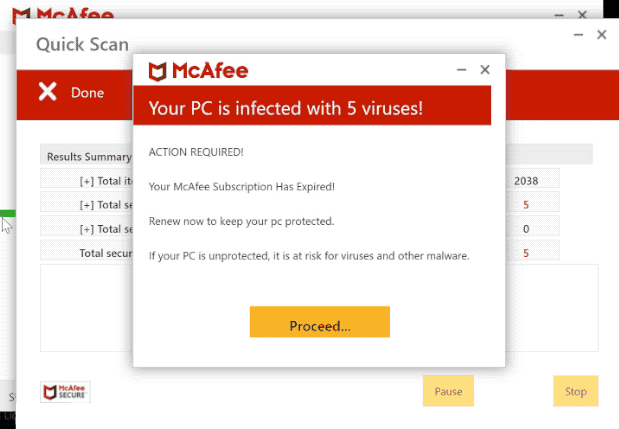
These fake McAfee virus pop-ups usually appear while browsing, after visiting a shady site, or inadvertently accepting push notifications from a site you perhaps shouldn’t trust. In many cases, the pop-up will offer a “scan now” button that initiates a download or redirects to another site where you’re asked to purchase software, submit payment details, or install something you shouldn’t.
It’s important to understand that if you are seeing McAfee virus pop-up alerts but you don’t actually have McAfee software installed, or you didn’t open the McAfee app to trigger the alert, then it’s almost certainly a fake. Genuine antivirus programs don’t typically randomly generate browser pop-ups demanding immediate action outside their own app interface.
Why are you seeing fake McAfee virus pop-ups?
There are several common reasons why you might get such pop-ups repeatedly. For example, visiting a malicious website that injected adware or allowed a script to display fake alerts, installing a browser extension that is malicious or overly permissive, accepting browser push notifications from a site you don’t realize is untrustworthy, or downloading files from untrusted sources (pirated software or “cracked” apps), which carry adware that triggers these alerts.
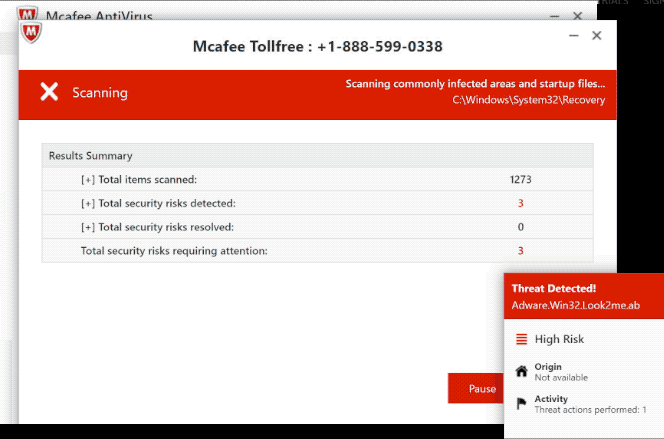
Once the adware or unwanted extension is present in your system or browser, it triggers pop-ups and notifications that pretend to be alerts from McAfee. Because they exploit the name of a trusted antivirus vendor, they can trick users into thinking something is seriously wrong, leading to panic, poor decisions, and potential financial harm.
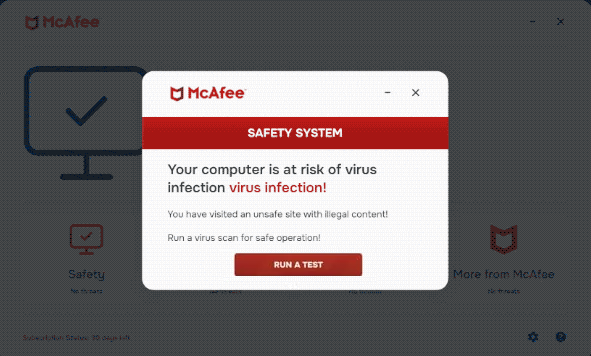
At first glance, these fake McAfee pop-ups may look like a harmless annoyance, but they pose a real risk. Their ultimate goal is often to get you to purchase unnecessary software, hand over your credit card or banking details, or install malware that further compromises your system. Clicking on the bogus “scan” button can lead to a malicious file being downloaded or a phishing site opening, where your personal information is harvested.
Even if you don’t click, the fact that adware is active means your system has been compromised in some fashion. That opens the door to further intrusions, privacy violations, unwanted tracking, browser hijackings, and more serious malware. Removing the threat promptly is key not merely for convenience but for your digital safety.
How to remove McAfee fake alerts
Removing these pop-ups involves a combination of browser cleanup, checking for unwanted extensions or apps, and running a full system scan with trusted security software.
First, clear your browser’s data and reset the browser to its default state.
In Chrome, open the menu → Settings → Privacy and Security → Clear browsing data, select “All time” as the time range, choose the types of data you want to remove (you might exclude saved passwords if you prefer), and then confirm. Next, still in Settings, go to Reset settings → Restore settings to their original defaults. These actions help remove any residual scripts, cached files, or redirect instructions that might be producing those pop-ups.
If you’re using Safari on a Mac, open Safari → Settings (or Preferences) → Privacy, then click Manage Website Data and remove all stored data. You can also clear your history by selecting Safari → Clear History, choosing all history, and confirming. To reset Safari’s notifications and extensions, go to Safari → Settings → Websites, review permissions under Notifications and Pop-up Windows, and remove or block any suspicious entries.
In Firefox, open the menu and go to Settings → Privacy & Security. Under Cookies and Site Data, click Clear Data, select both options, and confirm. Then scroll down to History and click Clear History, choosing “Everything” as the time range. To reset Firefox, open the menu again, choose Help → More Troubleshooting Information, then click Refresh Firefox. This restores default settings while preserving essential data like bookmarks.
For Microsoft Edge, click the menu and select Settings → Privacy, Search, and Services → Clear browsing data. Choose All time as the time range, select the data types you want to clear, and confirm. Then go to Reset settings → Restore settings to their default values. This removes unwanted extensions, cached files, and residual hijacker scripts.
Second, inspect your browser extensions and your system’s installed applications.
In the browser’s extension manager, remove anything you don’t recognise or didn’t install knowingly. On your computer, uninstall unfamiliar programmes. On a Mac, drag suspicious apps to the Trash and empty it. On Windows, use “Add or remove programs”. Any unknown or suspicious application may be the root cause of those fake alerts.
Third, run a full system scan with reputable antivirus or antimalware software.
Even if you haven’t clicked on the pop-ups, the fact that they appeared suggests some form of adware or unwanted software may be present. Choose trusted security software, install it, allow it to update its definitions, then run a full scan. Follow its instructions to quarantine or remove any threats found, then enable real-time protection so you’re better protected going forward.
Fourth, add another layer of protection by enabling or installing a quality ad-blocker or pop-up blocker extension. While it’s not a substitute for cleanup and scanning, it can reduce your exposure by blocking malicious pop-ups and shady domains from showing you fake alerts in the first place.
Offers
Download Removal Toolto scan for How to get rid of fake McAfee virus pop-upsUse our recommended removal tool to scan for How to get rid of fake McAfee virus pop-ups. Trial version of provides detection of computer threats like How to get rid of fake McAfee virus pop-ups and assists in its removal for FREE. You can delete detected registry entries, files and processes yourself or purchase a full version.
More information about SpyWarrior and Uninstall Instructions. Please review SpyWarrior EULA and Privacy Policy. SpyWarrior scanner is free. If it detects a malware, purchase its full version to remove it.

WiperSoft Review Details WiperSoft (www.wipersoft.com) is a security tool that provides real-time security from potential threats. Nowadays, many users tend to download free software from the Intern ...
Download|moreIs MacKeeper a virus? MacKeeper is not a virus, nor is it a scam. While there are various opinions about the program on the Internet, a lot of the people who so notoriously hate the program have neve ...
Download|moreWhile the creators of MalwareBytes anti-malware have not been in this business for long time, they make up for it with their enthusiastic approach. Statistic from such websites like CNET shows that th ...
Download|more



Incoming search terms:
Site Disclaimer
2-remove-virus.com is not sponsored, owned, affiliated, or linked to malware developers or distributors that are referenced in this article. The article does not promote or endorse any type of malware. We aim at providing useful information that will help computer users to detect and eliminate the unwanted malicious programs from their computers. This can be done manually by following the instructions presented in the article or automatically by implementing the suggested anti-malware tools.
The article is only meant to be used for educational purposes. If you follow the instructions given in the article, you agree to be contracted by the disclaimer. We do not guarantee that the artcile will present you with a solution that removes the malign threats completely. Malware changes constantly, which is why, in some cases, it may be difficult to clean the computer fully by using only the manual removal instructions.