

push-news.org is a deceptive website that abuses browser notification permissions to deliver intrusive advertisements. The site is designed to trigger a notification request and pressure visitors into selecting “Allow.” Once permission is granted, push-news.org can send notifications directly to the device through the browser’s built-in alert system, meaning pop-ups may appear even when the website is not open, and the browser is running in the background.
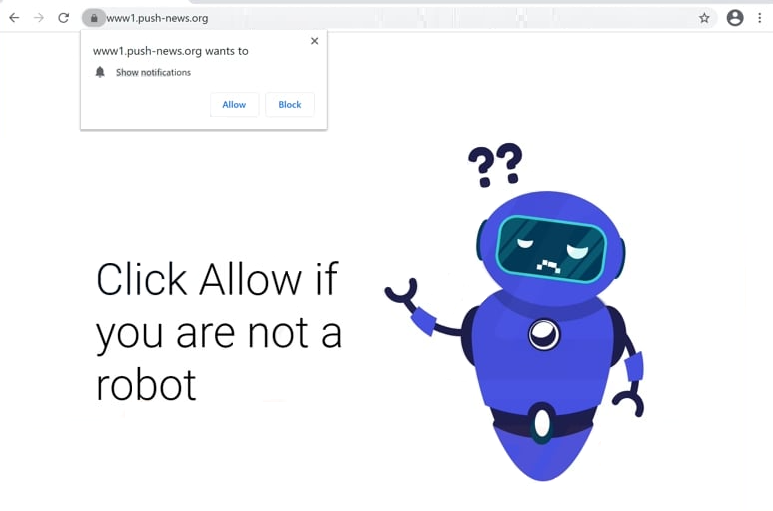
The scam is based on the misrepresentation of what the permission prompt means. push-news.org commonly displays instructions claiming that clicking “Allow” is required to continue to a web page, confirm a user is not a robot, start a download, or play a video. These statements are false. Selecting “Allow” does not provide access to content. It authorizes the site to send browser notifications.
After notification access is enabled, push-news.org begins delivering advertisements through the notification channel. These alerts may promote questionable products, suspicious services, or unrelated websites. Some notifications are formatted to resemble security warnings or urgent system messages, which increases the chance of clicks. The notifications can also link to pages that attempt to collect personal information, push unwanted software, or redirect visitors through additional advertising networks.
The content distributed through push-news.org notifications is not connected to legitimate account activity. There is no subscription, service update, or verified source behind the alerts. The purpose is traffic generation. Each click can produce revenue through affiliate tracking, advertising impressions, or referral payments. This makes the notification spam persistent and repetitive, especially when the site is part of a wider advertising rotation.
push-news.org is associated with reduced browsing quality and increased exposure to unsafe web pages. Notifications can interrupt normal work, distract users, and create confusion because they appear outside the browser window. Some users interpret these pop-ups as operating system warnings rather than browser-delivered ads. This confusion can lead to further interaction with links that direct to misleading or fraudulent pages. The site does not provide a legitimate function that requires notification permission, and its activity is consistent with browser-based advertising abuse.
Why users may get redirected to sites that show these notification alerts
Redirects to push-news.org usually occur through advertising-driven browsing paths rather than deliberate navigation. Many users arrive at these pages after visiting websites that rely on aggressive monetization, including unauthorized streaming services, pirated downloads, free file hosting, or other content platforms that use high-volume ad networks. These networks often serve redirects as part of their traffic delivery methods, sending visitors to rotating destinations that include notification permission scams.
Misleading advertisements are a common trigger. Some ads are designed to open new tabs automatically, redirect the current page, or launch pop-ups after a single click. Buttons that appear to be video controls, download links, or navigation elements may actually function as advertising redirects. When activated, the browser is forwarded through multiple intermediate pages until it reaches push-news.org, where the notification prompt appears immediately.
Adware and unwanted extensions can also cause repeated redirects to pages like push-news.org. Adware can inject additional ads into websites, open sponsored tabs, and force traffic toward promotional destinations. Unwanted browser extensions may gain permission to read and change browsing data, allowing them to display extra advertisements or route users to sites that request notification access. In these cases, redirects may occur even during visits to otherwise legitimate websites because the unwanted component is controlling the browsing session.
Compromised web pages represent another source of exposure. A legitimate site can load third-party scripts, advertising resources, or embedded content that has been altered or replaced. When this happens, visitors can be redirected without obvious interaction. The redirect may occur on page load, after a short delay, or after clicking within the page, depending on how the injected content is configured.
Search results can also lead to these pages when advertising content is involved. Sponsored results, misleading ads placed near search listings, or altered browser search settings can route users to redirect chains that end at notification scam sites. This is especially common when browsing for free downloads, streaming links, or software installers, where advertising competition is high and deceptive placements are common.
Remove push-news.org pop-up ads
It’s recommended to scan the computer with an anti-malware program to check for an adware infection. Whether adware is present or not, it’s also a good idea to install an adblocker program.
If you have given push-news.org permission to show notifications, you need to revoke it right away. This is not difficult to do, and instructions are provided below.
- Mozilla Firefox: Open the menu (the three bars at the top-right corner), click Options, then Privacy & Security. Scroll down to Permissions, press Settings next to Notifications, and remove push-news.org and any other questionable websites from the list. It’s possible to permanently turn off push notification requests by checking the “Block new requests asking to allow notifications” box in the same Notifications settings.
- Google Chrome: Open the menu (the three dots top-right corner), then Settings, then Privacy and security, then Site Settings. Click on Notifications under Permissions, and remove push-news.org and any other questionable websites from the list. It’s possible to permanently turn off push notification requests by toggling off “Sites can ask to send notifications”.
- Microsoft Edge: Open the menu (the three dots top-right corner), then Settings, then Cookies and site permissions, then Notifications. Review which sites have permission and remove push-news.org and any other questionable websites from the list. It’s possible to permanently turn off push notification requests by toggling off “Ask before sending”.
Offers
Download Removal Toolto scan for Remove push-news.org pop-up adsUse our recommended removal tool to scan for Remove push-news.org pop-up ads. Trial version of provides detection of computer threats like Remove push-news.org pop-up ads and assists in its removal for FREE. You can delete detected registry entries, files and processes yourself or purchase a full version.
More information about SpyWarrior and Uninstall Instructions. Please review SpyWarrior EULA and Privacy Policy. SpyWarrior scanner is free. If it detects a malware, purchase its full version to remove it.

WiperSoft Review Details WiperSoft (www.wipersoft.com) is a security tool that provides real-time security from potential threats. Nowadays, many users tend to download free software from the Intern ...
Download|moreIs MacKeeper a virus? MacKeeper is not a virus, nor is it a scam. While there are various opinions about the program on the Internet, a lot of the people who so notoriously hate the program have neve ...
Download|moreWhile the creators of MalwareBytes anti-malware have not been in this business for long time, they make up for it with their enthusiastic approach. Statistic from such websites like CNET shows that th ...
Download|more
Quick Menu
Step 1. Uninstall Remove push-news.org pop-up ads and related programs.
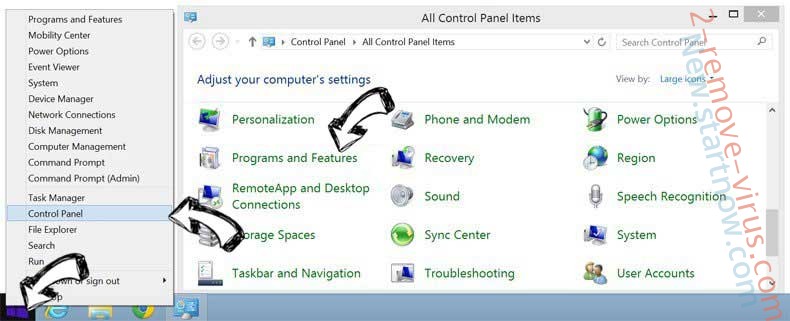
Remove Remove push-news.org pop-up ads from Windows 8
Right-click in the lower left corner of the screen. Once Quick Access Menu shows up, select Control Panel choose Programs and Features and select to Uninstall a software.
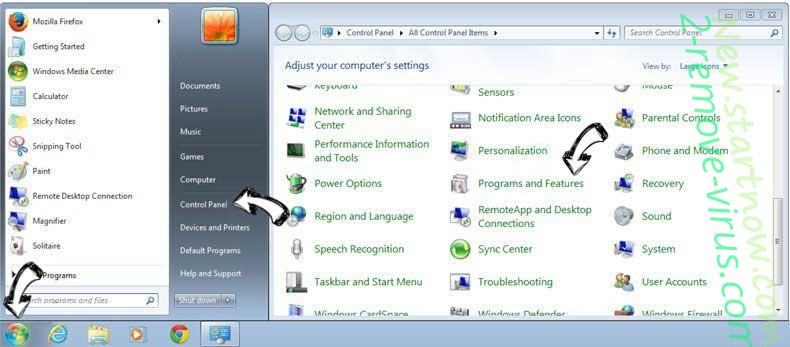
Uninstall Remove push-news.org pop-up ads from Windows 7
Click Start → Control Panel → Programs and Features → Uninstall a program.
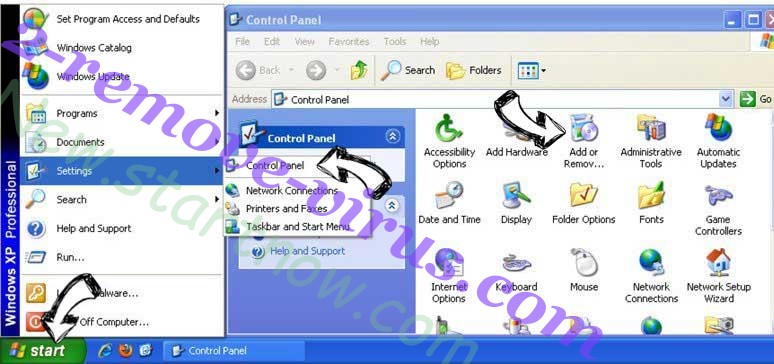
Delete Remove push-news.org pop-up ads from Windows XP
Click Start → Settings → Control Panel. Locate and click → Add or Remove Programs.
Remove Remove push-news.org pop-up ads from Mac OS X
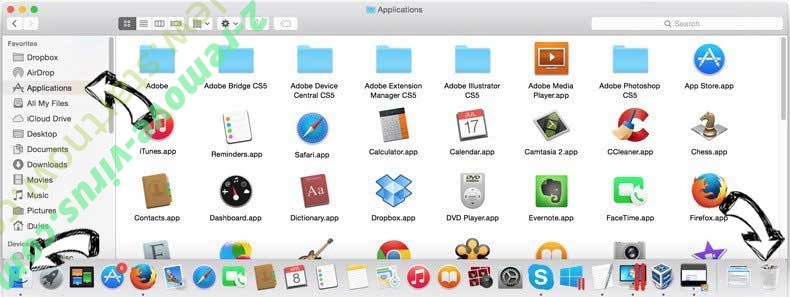
Click Go button at the top left of the screen and select Applications. Select applications folder and look for Remove push-news.org pop-up ads or any other suspicious software. Now right click on every of such entries and select Move to Trash, then right click the Trash icon and select Empty Trash.
Step 2. Delete Remove push-news.org pop-up ads from your browsers
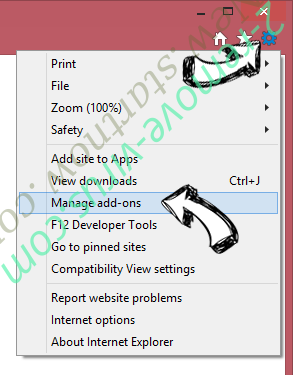
Terminate the unwanted extensions from Internet Explorer
- Tap the Gear icon and go to Manage Add-ons.
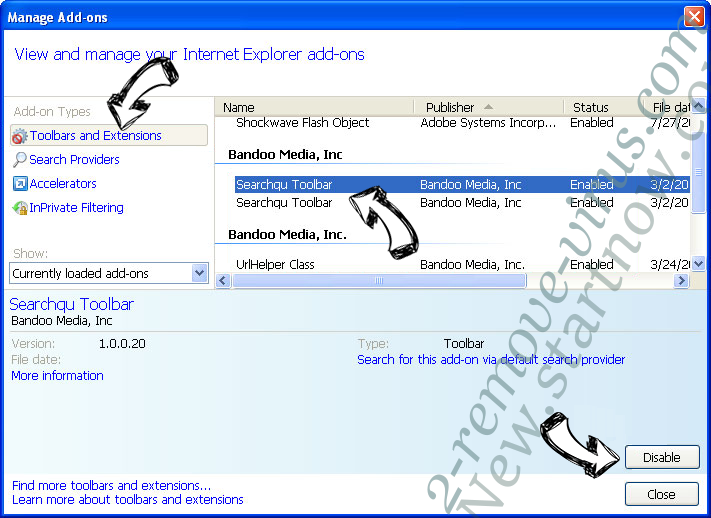
- Pick Toolbars and Extensions and eliminate all suspicious entries (other than Microsoft, Yahoo, Google, Oracle or Adobe)
- Leave the window.
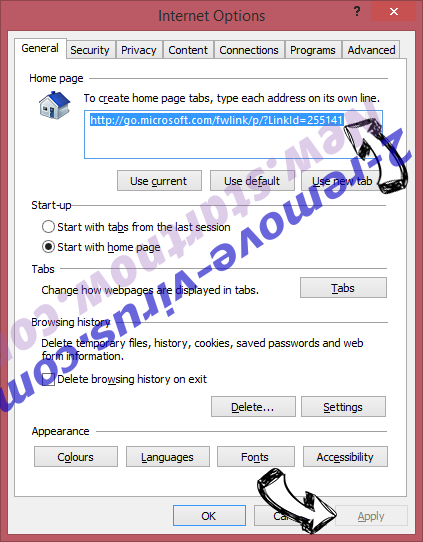
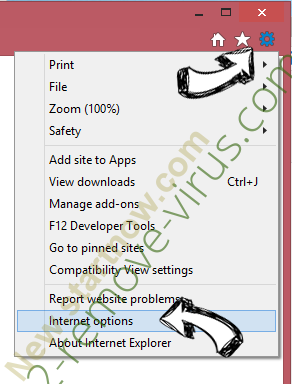
Change Internet Explorer homepage if it was changed by virus:
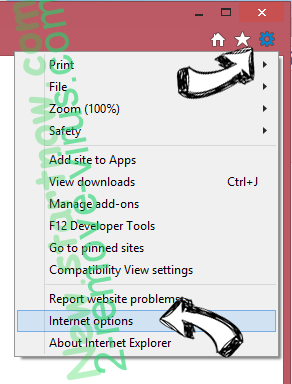
- Tap the gear icon (menu) on the top right corner of your browser and click Internet Options.
- In General Tab remove malicious URL and enter preferable domain name. Press Apply to save changes.
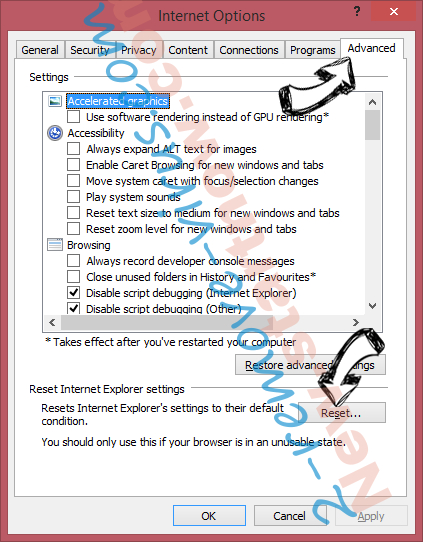
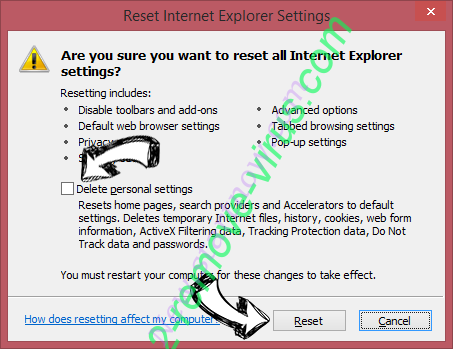
Reset your browser
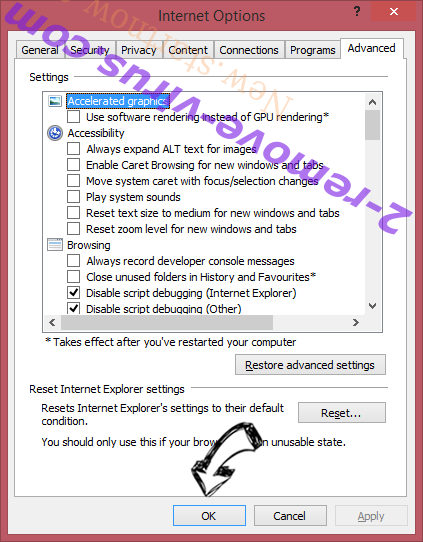
- Click the Gear icon and move to Internet Options.
- Open the Advanced tab and press Reset.
- Choose Delete personal settings and pick Reset one more time.
- Tap Close and leave your browser.
- If you were unable to reset your browsers, employ a reputable anti-malware and scan your entire computer with it.
Erase Remove push-news.org pop-up ads from Google Chrome
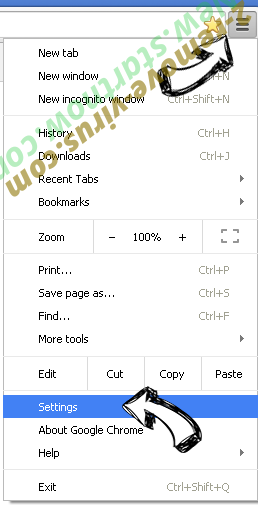
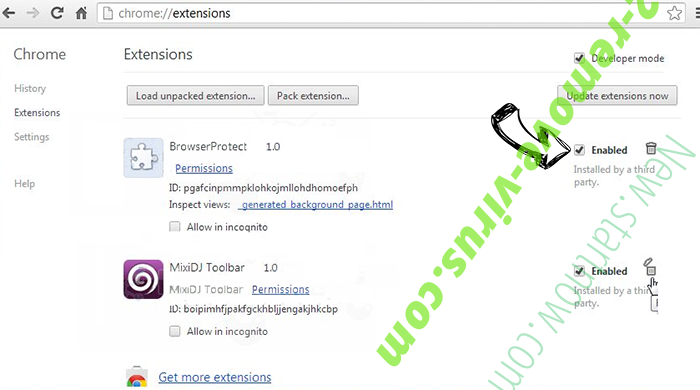
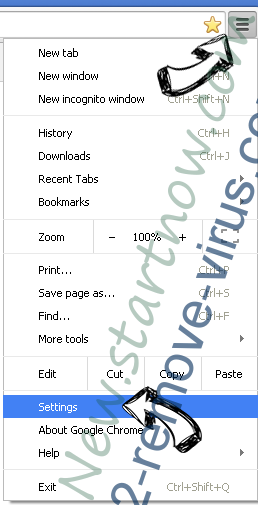
- Access menu (top right corner of the window) and pick Settings.
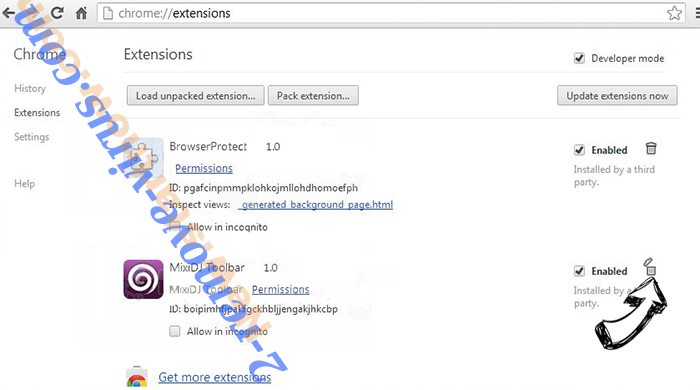
- Choose Extensions.
- Eliminate the suspicious extensions from the list by clicking the Trash bin next to them.
- If you are unsure which extensions to remove, you can disable them temporarily.
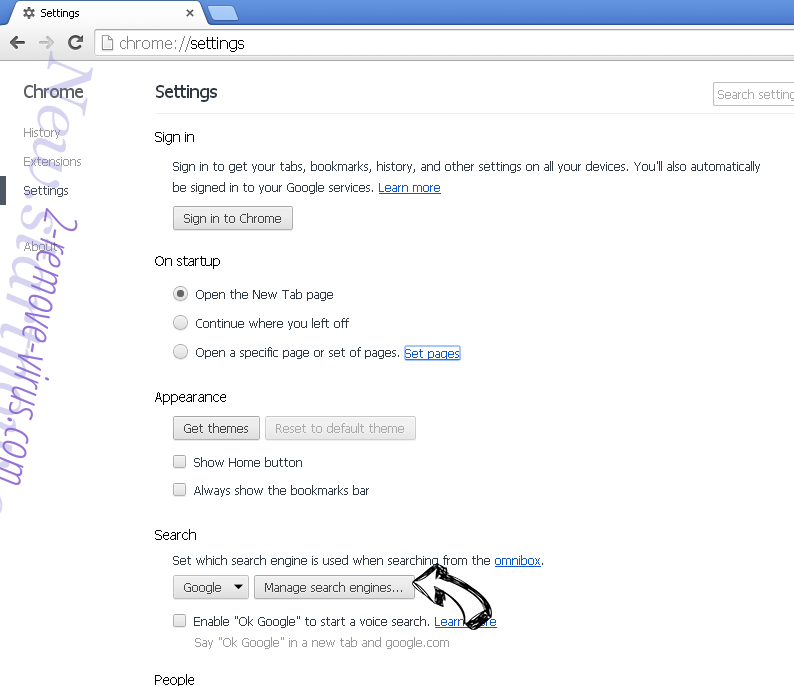
Reset Google Chrome homepage and default search engine if it was hijacker by virus
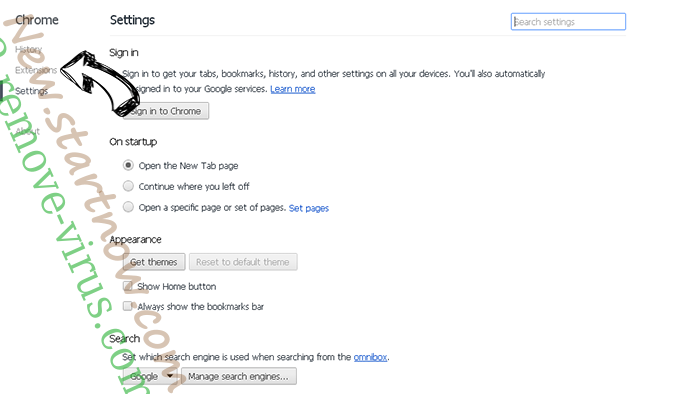
- Press on menu icon and click Settings.
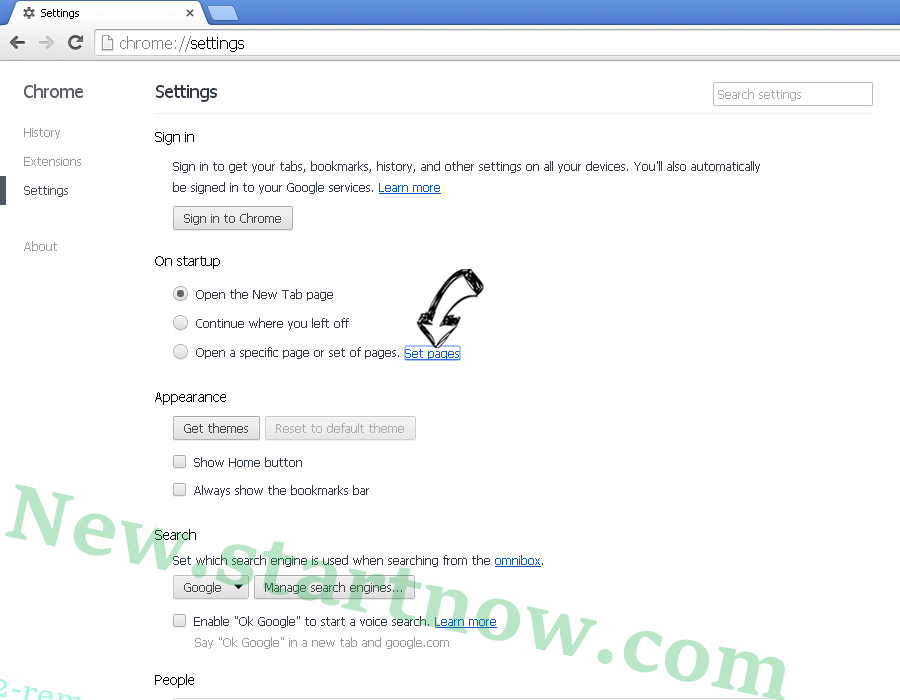
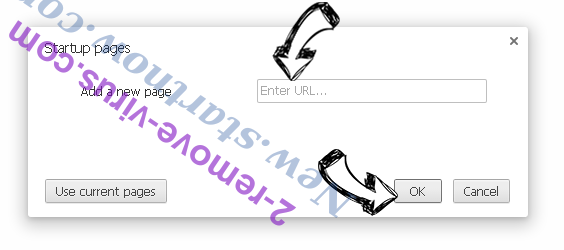
- Look for the “Open a specific page” or “Set Pages” under “On start up” option and click on Set pages.
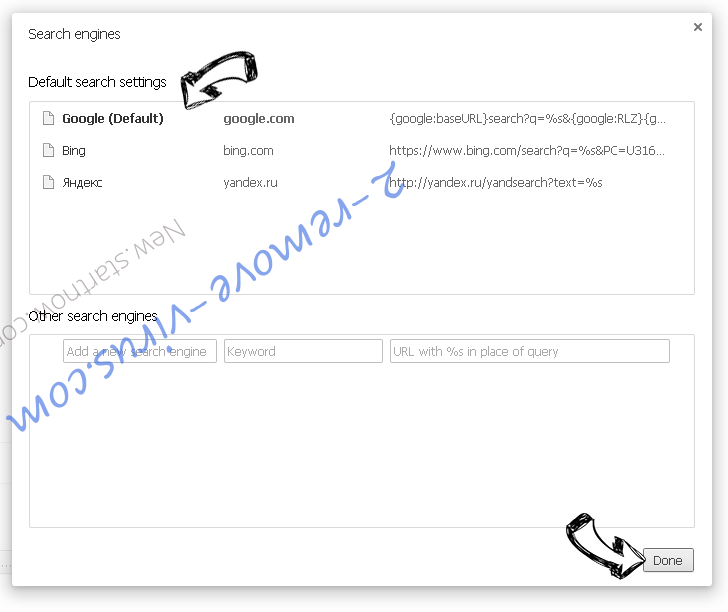
- In another window remove malicious search sites and enter the one that you want to use as your homepage.
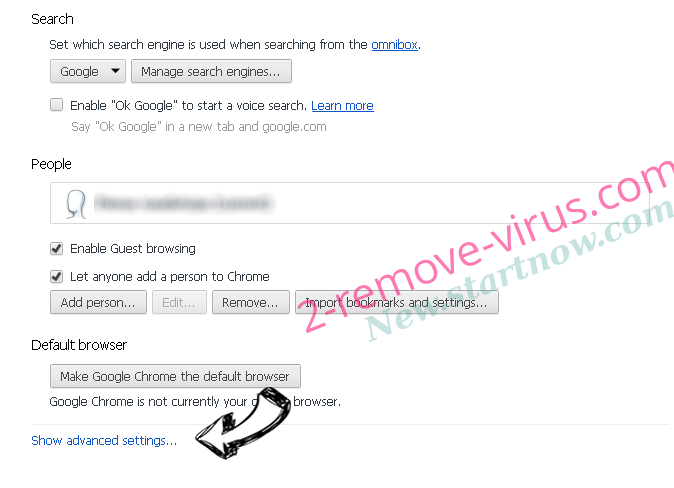
- Under the Search section choose Manage Search engines. When in Search Engines..., remove malicious search websites. You should leave only Google or your preferred search name.
Reset your browser
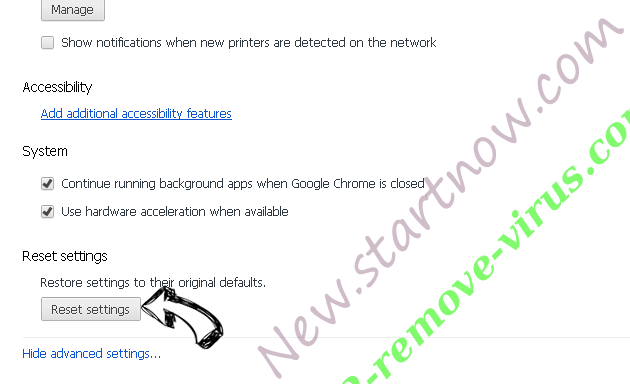
- If the browser still does not work the way you prefer, you can reset its settings.
- Open menu and navigate to Settings.
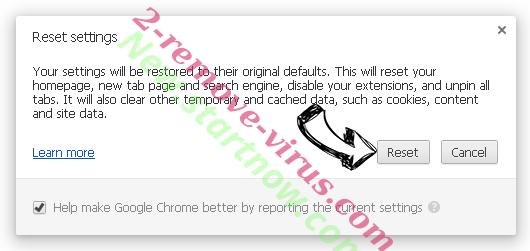
- Press Reset button at the end of the page.
- Tap Reset button one more time in the confirmation box.
- If you cannot reset the settings, purchase a legitimate anti-malware and scan your PC.
Remove Remove push-news.org pop-up ads from Mozilla Firefox
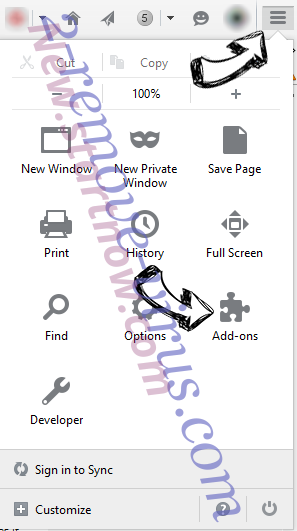
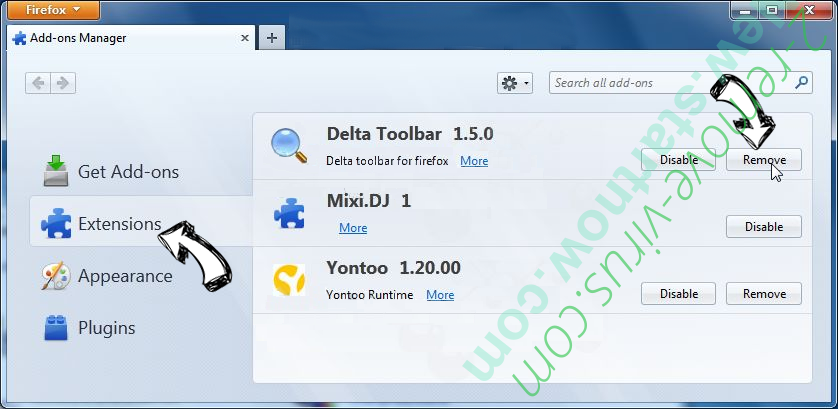
- In the top right corner of the screen, press menu and choose Add-ons (or tap Ctrl+Shift+A simultaneously).
- Move to Extensions and Add-ons list and uninstall all suspicious and unknown entries.
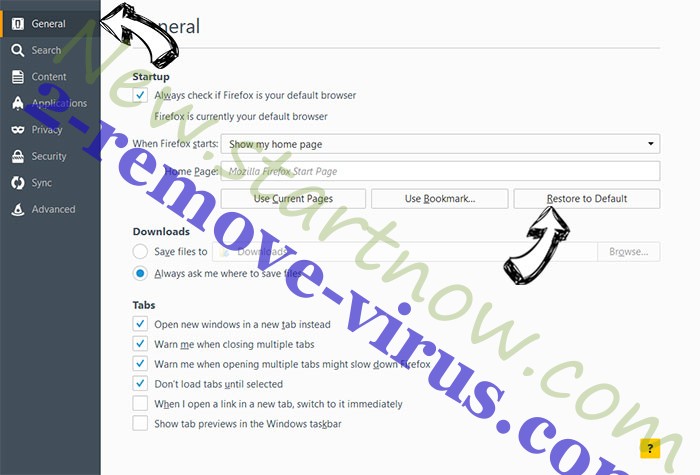
Change Mozilla Firefox homepage if it was changed by virus:
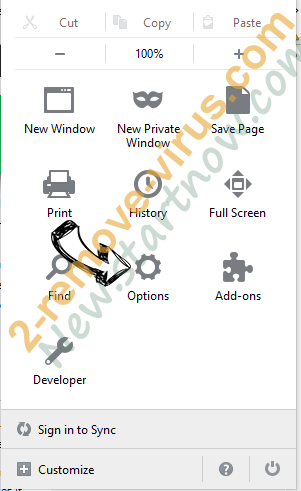
- Tap on the menu (top right corner), choose Options.
- On General tab delete malicious URL and enter preferable website or click Restore to default.
- Press OK to save these changes.
Reset your browser
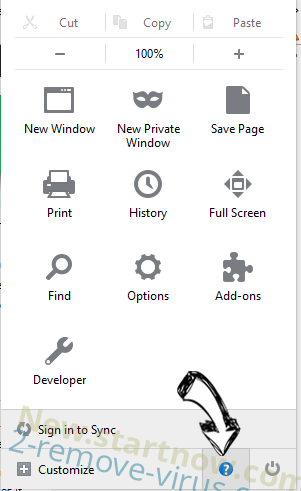
- Open the menu and tap Help button.
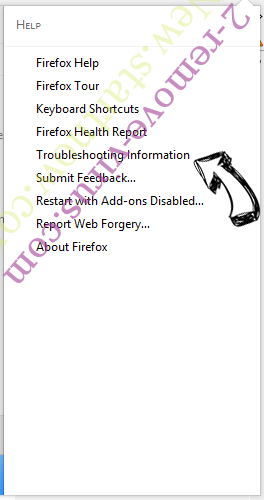
- Select Troubleshooting Information.
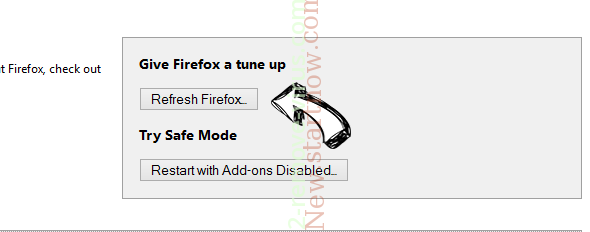
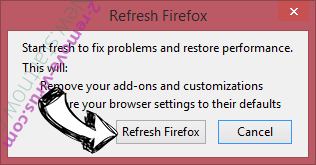
- Press Refresh Firefox.
- In the confirmation box, click Refresh Firefox once more.
- If you are unable to reset Mozilla Firefox, scan your entire computer with a trustworthy anti-malware.
Uninstall Remove push-news.org pop-up ads from Safari (Mac OS X)
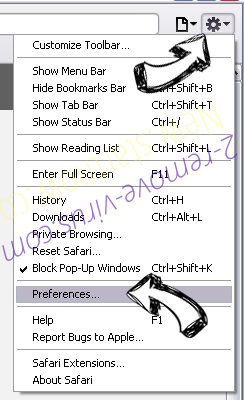
- Access the menu.
- Pick Preferences.
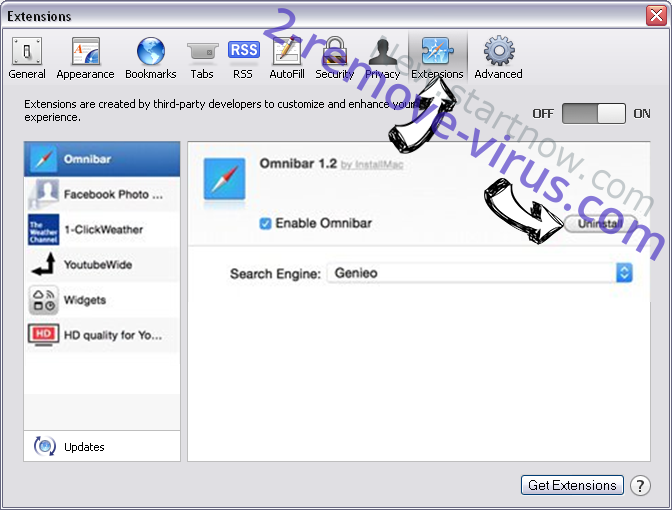
- Go to the Extensions Tab.
- Tap the Uninstall button next to the undesirable Remove push-news.org pop-up ads and get rid of all the other unknown entries as well. If you are unsure whether the extension is reliable or not, simply uncheck the Enable box in order to disable it temporarily.
- Restart Safari.
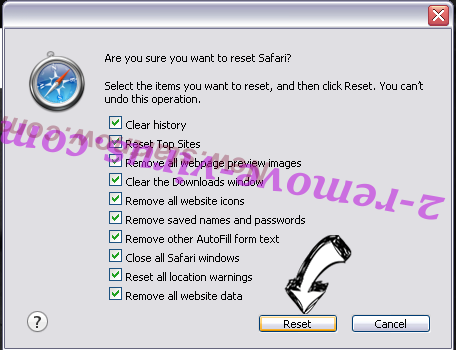
Reset your browser
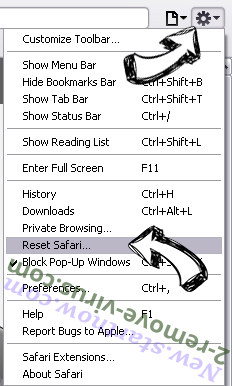
- Tap the menu icon and choose Reset Safari.
- Pick the options which you want to reset (often all of them are preselected) and press Reset.
- If you cannot reset the browser, scan your whole PC with an authentic malware removal software.



Site Disclaimer
2-remove-virus.com is not sponsored, owned, affiliated, or linked to malware developers or distributors that are referenced in this article. The article does not promote or endorse any type of malware. We aim at providing useful information that will help computer users to detect and eliminate the unwanted malicious programs from their computers. This can be done manually by following the instructions presented in the article or automatically by implementing the suggested anti-malware tools.
The article is only meant to be used for educational purposes. If you follow the instructions given in the article, you agree to be contracted by the disclaimer. We do not guarantee that the artcile will present you with a solution that removes the malign threats completely. Malware changes constantly, which is why, in some cases, it may be difficult to clean the computer fully by using only the manual removal instructions.