

The search.myprivate-search.com redirect occurs when a browser hijacker changes browser settings to force traffic through the search.myprivate-search.com website. This behaviour is not triggered by a browser update or user configuration. The site is assigned as the homepage and often becomes the default search engine, causing it to load automatically during normal browsing.
After the hijacker is installed, search.myprivate-search.com appears when the browser starts or when a new tab is opened. Searches entered into the address bar or browser search field are intercepted and routed through the site. The search query is then forwarded to another search provider, allowing the site operators to influence which results and advertisements are displayed.
search.myprivate-search.com promotes itself as a privacy-focused search page. The site may display messaging related to anonymous searching or enhanced privacy. Despite these claims, the page does not function as an independent search engine and does not provide verified privacy protections. Its primary role is to redirect search traffic and generate revenue from promoted content.
The browser hijacker responsible for this redirect applies changes that persist across browser restarts. It may modify browser configuration files or install an extension with permission to manage settings. This allows the hijacker to prevent users from restoring their preferred homepage or search engine. Even after manual changes, the browser may revert to search.myprivate-search.com once it is reopened.
In many cases, no alert or confirmation is shown when these changes are applied. Users may only notice the issue after repeated redirects or when their usual search engine no longer appears. Because the redirect is subtle and consistent, it can be mistaken for normal browser behaviour.
The presence of search.myprivate-search.com can reduce search reliability. Sponsored links may appear prominently, leading to websites that focus on advertising, subscriptions, or additional downloads. The redirect does not improve privacy, search quality, or browsing performance and does not provide a functional benefit to the user.
How the search.myprivate-search.com browser hijacker is introduced and detected
The browser hijacker that promotes search.myprivate-search.com is commonly installed through software bundling. It is included in installers for free programs distributed on third-party download websites. During installation, the hijacker may be presented as a search feature, privacy tool, or browser enhancement.
Users who select default or express installation options may install the hijacker without realising it. The option to decline installation is usually hidden within advanced or custom setup menus. These menus are often skipped, allowing the browser modification to be applied automatically.
In some cases, the hijacker is distributed through promotional pages or advertisements that claim to improve online privacy or search efficiency. Installing these tools results in immediate browser changes that assign search.myprivate-search.com as the homepage and route searches through the site.
The redirect can be identified by persistent changes to browser behaviour. The browser opens search.myprivate-search.com at startup. New tabs load the site instead of the expected page. Search results continue to pass through the site even after the user attempts to change browser settings.
Another sign is that browser preferences cannot be saved permanently. Users may reset the homepage or default search engine, only to find that the settings revert after restarting the browser. This indicates that the hijacker is actively enforcing its configuration.
Unfamiliar browser extensions may also appear. These extensions often have non-descriptive names and request permission to modify browser settings or access browsing data. Removing visible browser settings alone may not stop the redirect if the extension remains installed.
The search.myprivate-search.com redirect does not present error messages or warnings. It operates quietly, which can delay recognition. Over time, repeated redirects and altered search results can reduce trust in the browser and expose users to unreliable content.
Preventing browser hijackers like this one requires careful attention during software installation. Selecting advanced or custom setup options allows users to review bundled components and decline unwanted additions. Downloading software from official developer websites reduces exposure to installers that modify browser settings.
Remove search.myprivate-search.com redirect
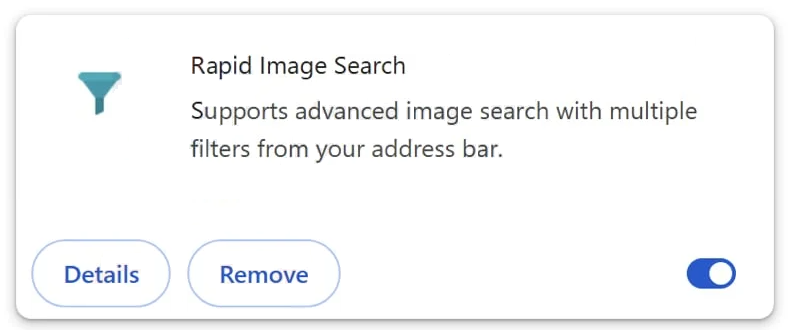
When it comes to browser hijackers, it’s always recommended to use an anti-malware program. To remove search.myprivate-search.com redirect from your browser, you’ll need to get rid of the Rapid Image Search browser hijacker.
Offers
Download Removal Toolto scan for Remove search.myprivate-search.com redirectUse our recommended removal tool to scan for Remove search.myprivate-search.com redirect. Trial version of provides detection of computer threats like Remove search.myprivate-search.com redirect and assists in its removal for FREE. You can delete detected registry entries, files and processes yourself or purchase a full version.
More information about SpyWarrior and Uninstall Instructions. Please review SpyWarrior EULA and Privacy Policy. SpyWarrior scanner is free. If it detects a malware, purchase its full version to remove it.

WiperSoft Review Details WiperSoft (www.wipersoft.com) is a security tool that provides real-time security from potential threats. Nowadays, many users tend to download free software from the Intern ...
Download|moreIs MacKeeper a virus? MacKeeper is not a virus, nor is it a scam. While there are various opinions about the program on the Internet, a lot of the people who so notoriously hate the program have neve ...
Download|moreWhile the creators of MalwareBytes anti-malware have not been in this business for long time, they make up for it with their enthusiastic approach. Statistic from such websites like CNET shows that th ...
Download|more



Quick Menu
Step 1. Delete Remove search.myprivate-search.com redirect using Safe Mode with Networking.
Remove Remove search.myprivate-search.com redirect from Windows 7/Windows Vista/Windows XP
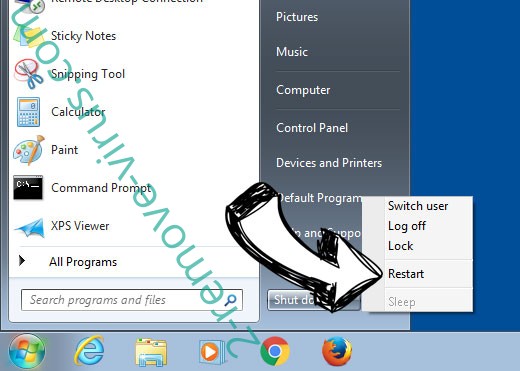
- Click on Start and select Shutdown.
- Choose Restart and click OK.
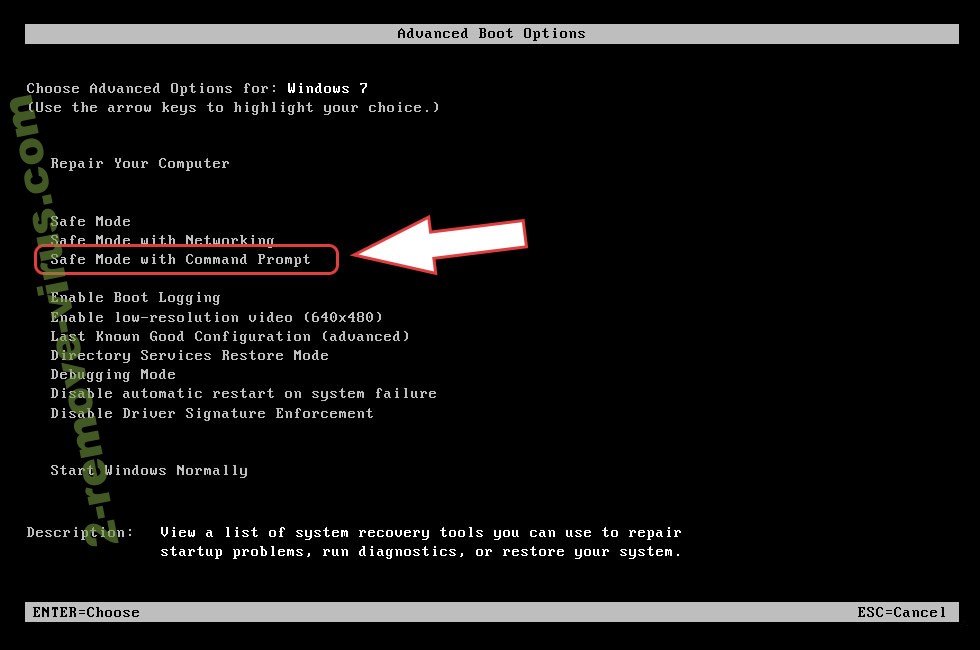
- Start tapping F8 when your PC starts loading.
- Under Advanced Boot Options, choose Safe Mode with Networking.
- Open your browser and download the anti-malware utility.
- Use the utility to remove Remove search.myprivate-search.com redirect
Remove Remove search.myprivate-search.com redirect from Windows 8/Windows 10
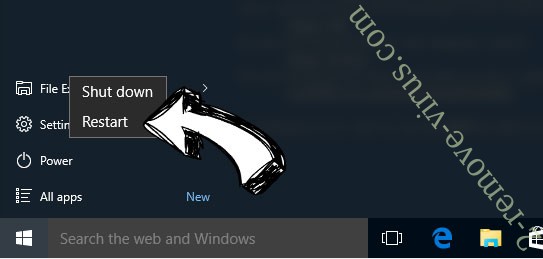
- On the Windows login screen, press the Power button.
- Tap and hold Shift and select Restart.
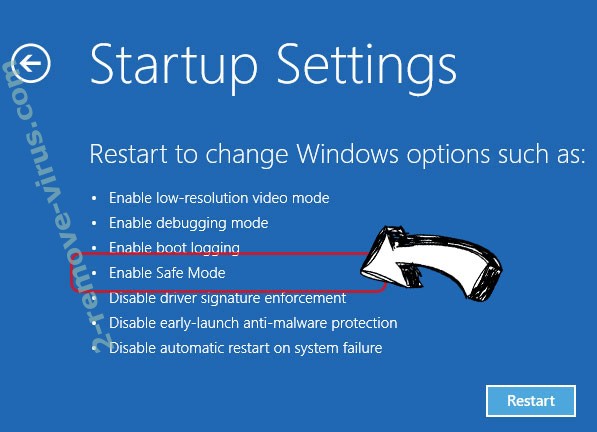
- Go to Troubleshoot → Advanced options → Start Settings.
- Choose Enable Safe Mode or Safe Mode with Networking under Startup Settings.
- Click Restart.
- Open your web browser and download the malware remover.
- Use the software to delete Remove search.myprivate-search.com redirect
Step 2. Restore Your Files using System Restore
Delete Remove search.myprivate-search.com redirect from Windows 7/Windows Vista/Windows XP
- Click Start and choose Shutdown.
- Select Restart and OK
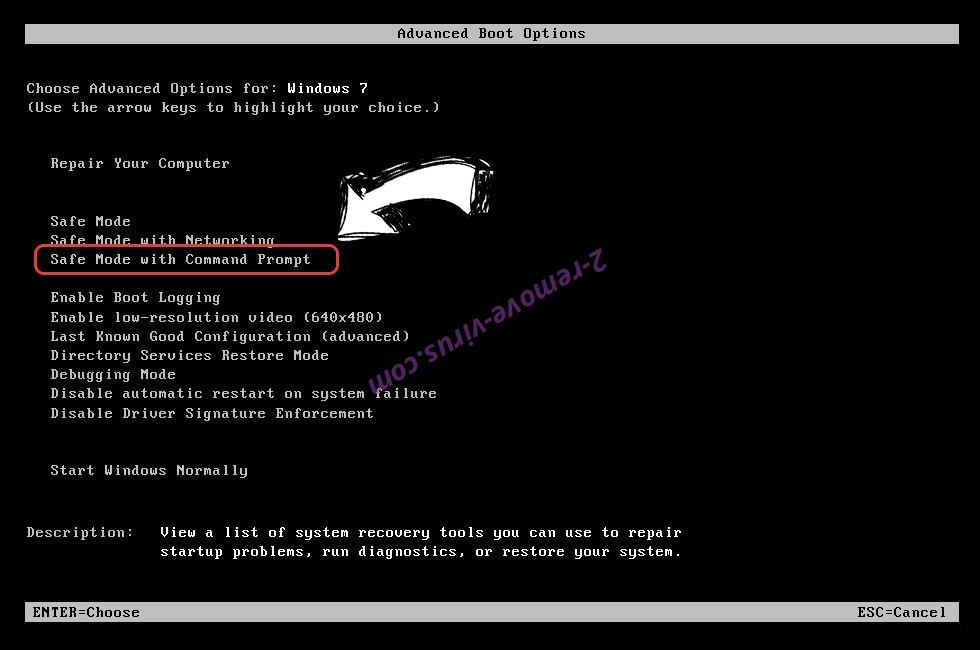
- When your PC starts loading, press F8 repeatedly to open Advanced Boot Options
- Choose Command Prompt from the list.
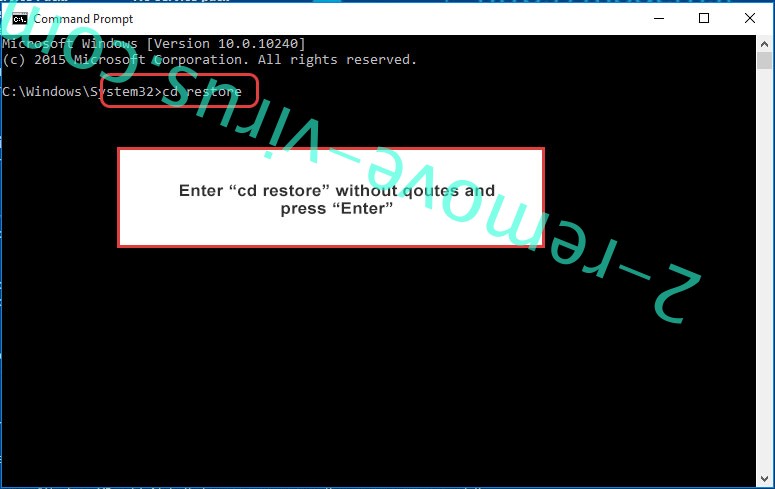
- Type in cd restore and tap Enter.
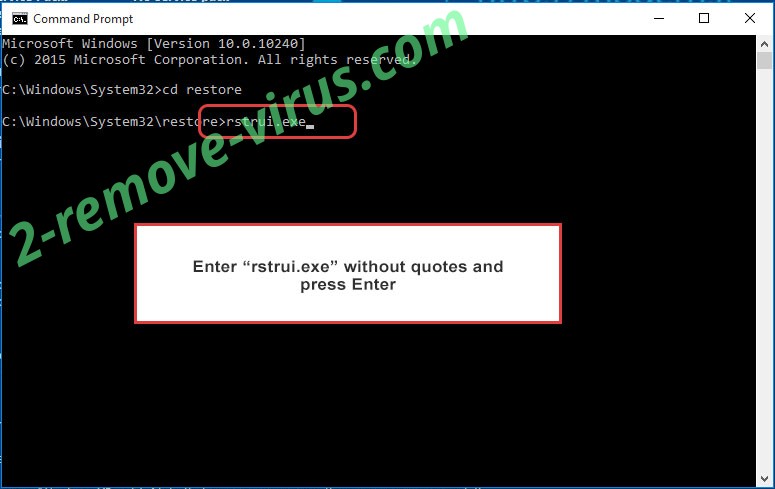
- Type in rstrui.exe and press Enter.
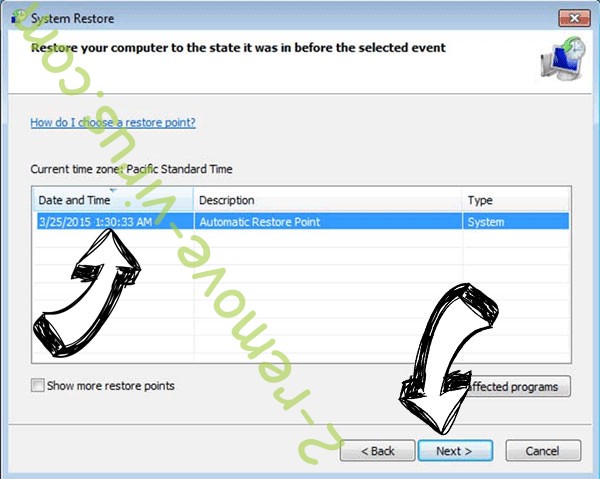
- Click Next in the new window and select the restore point prior to the infection.
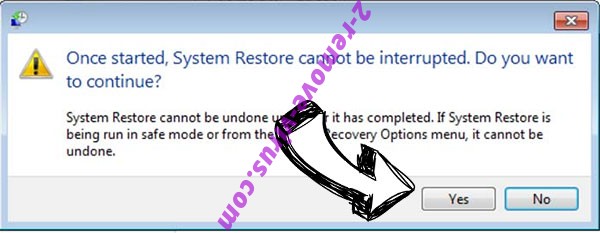
- Click Next again and click Yes to begin the system restore.
Delete Remove search.myprivate-search.com redirect from Windows 8/Windows 10
- Click the Power button on the Windows login screen.
- Press and hold Shift and click Restart.
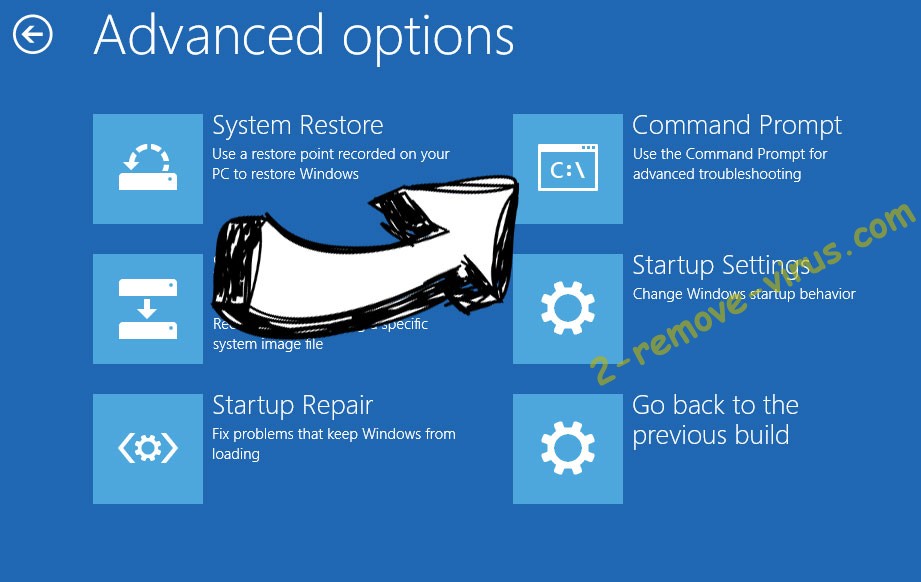
- Choose Troubleshoot and go to Advanced options.
- Select Command Prompt and click Restart.
- In Command Prompt, input cd restore and tap Enter.
- Type in rstrui.exe and tap Enter again.
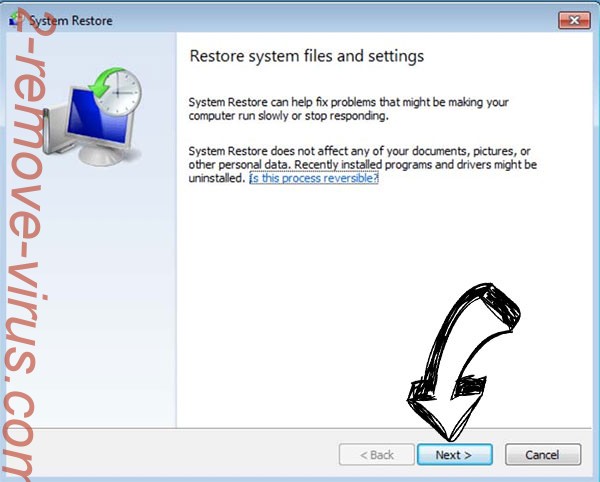
- Click Next in the new System Restore window.
- Choose the restore point prior to the infection.
- Click Next and then click Yes to restore your system.
Incoming search terms:
Site Disclaimer
2-remove-virus.com is not sponsored, owned, affiliated, or linked to malware developers or distributors that are referenced in this article. The article does not promote or endorse any type of malware. We aim at providing useful information that will help computer users to detect and eliminate the unwanted malicious programs from their computers. This can be done manually by following the instructions presented in the article or automatically by implementing the suggested anti-malware tools.
The article is only meant to be used for educational purposes. If you follow the instructions given in the article, you agree to be contracted by the disclaimer. We do not guarantee that the artcile will present you with a solution that removes the malign threats completely. Malware changes constantly, which is why, in some cases, it may be difficult to clean the computer fully by using only the manual removal instructions.