

BlackWizard is ransomware that encrypts files on compromised Windows systems and demands payment in exchange for a decryption key. Once the encryption process is complete, victims can no longer access documents, images, archives, databases, and other affected files. The malware also displays a full-screen ransom message instructing victims to contact the attackers through Telegram.
One of the identifying characteristics of BlackWizard ransomware is that it appends the .BLWZ extension to encrypted files. For example, a file originally named document.docx is renamed to document.docx.BLWZ. This change allows victims to easily identify which files have been encrypted during the attack.
Unlike many ransomware families that create a text or HTML ransom note, BlackWizard presents its ransom demand through a full-screen message displayed after encryption has finished. The message informs victims that their files have been encrypted and instructs them to contact the attackers via Telegram to obtain a decryption key and further payment instructions. The malware relies on this full-screen notification rather than dropping a separate ransom note file.
After execution, BlackWizard ransomware scans the system for files matching its targeting criteria and encrypts them using cryptographic algorithms. Once encryption is complete, the affected files become inaccessible because their contents have been transformed into unreadable data. Victims are then presented with the full-screen ransom message, which claims that purchasing the attackers’ decryptor is the only way to recover the encrypted files.
The operators of BlackWizard ransomware attempt to convince victims that payment will restore access to their data. They claim that a unique decryption key exists for each victim and that it can only be obtained after contacting the attackers. However, there is no guarantee that cybercriminals will provide a working decryptor after receiving payment. Numerous ransomware victims have lost both their money and their encrypted files because the attackers either stopped responding or supplied ineffective recovery tools.
For this reason, paying the ransom is strongly discouraged. In addition to funding future criminal activity, payment does not ensure that encrypted data will be recovered. If clean backups created before the attack are available, they provide the safest and most reliable method of restoring files after the ransomware has been removed from the infected system.
Ransomware incidents may involve more than file encryption alone. Security researchers have observed that many ransomware operators steal sensitive information before deploying the encryption payload. The stolen data may later be used to pressure victims by threatening to publish confidential documents if the ransom is not paid. Consequently, organizations affected by BlackWizard ransomware should investigate whether unauthorized data access or exfiltration occurred alongside file encryption.
The presence of BlackWizard ransomware should be treated as evidence of a significant security compromise. Successfully deploying ransomware often requires attackers to gain substantial access to the infected system before launching the encryption routine. After the malware has been removed, a comprehensive security review should be performed to determine how the attackers gained access and whether additional malicious components remain on the network or endpoint.
How BlackWizard ransomware spreads
Like many ransomware threats, BlackWizard ransomware can be distributed through phishing emails containing malicious attachments or links. Opening a malicious document, archive, executable file, or script may trigger the installation of the ransomware on the victim’s computer.
Cybercriminals also distribute ransomware through malware loaders and trojans that silently download additional malicious payloads after compromising a system. Other common infection methods include fake software updates, pirated software, illegal software activation tools, compromised websites, malicious advertisements, and downloads obtained from untrusted third-party sources. In some cases, attackers also exploit vulnerable internet-facing services or previously compromised devices to deploy ransomware across multiple systems.
The likelihood of a ransomware infection can be reduced by downloading software only from official sources, installing operating system and application security updates promptly, avoiding unexpected email attachments and links, and using reputable security software capable of detecting malicious activity. Maintaining regular offline or otherwise isolated backups remains one of the most effective ways to recover encrypted data without relying on the attackers’ decryption key.
Remove BlackWizard ransomware
Ransomware-type infections are highly sophisticated and should not be removed manually. Thus, anti-malware software should be used to remove BlackWizard ransomware from the computer. When the infection is no longer present, the backup can be accessed to start file recovery.
Offers
Download Removal Toolto scan for BlackWizard ransomware (.BLWZ virus)Use our recommended removal tool to scan for BlackWizard ransomware (.BLWZ virus). Trial version of provides detection of computer threats like BlackWizard ransomware (.BLWZ virus) and assists in its removal for FREE. You can delete detected registry entries, files and processes yourself or purchase a full version.
More information about SpyWarrior and Uninstall Instructions. Please review SpyWarrior EULA and Privacy Policy. SpyWarrior scanner is free. If it detects a malware, purchase its full version to remove it.

WiperSoft Review Details WiperSoft (www.wipersoft.com) is a security tool that provides real-time security from potential threats. Nowadays, many users tend to download free software from the Intern ...
Download|moreIs MacKeeper a virus? MacKeeper is not a virus, nor is it a scam. While there are various opinions about the program on the Internet, a lot of the people who so notoriously hate the program have neve ...
Download|moreWhile the creators of MalwareBytes anti-malware have not been in this business for long time, they make up for it with their enthusiastic approach. Statistic from such websites like CNET shows that th ...
Download|more



Quick Menu
Step 1. Delete BlackWizard ransomware (.BLWZ virus) using Safe Mode with Networking.
Remove BlackWizard ransomware (.BLWZ virus) from Windows 7/Windows Vista/Windows XP
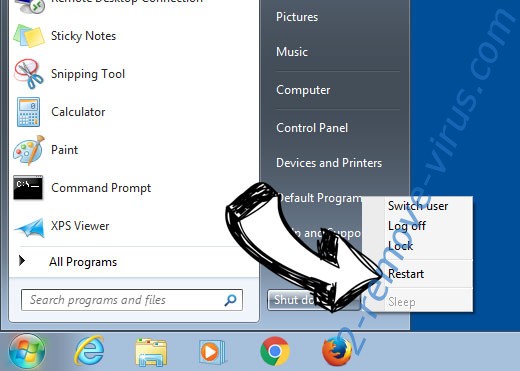
- Click on Start and select Shutdown.
- Choose Restart and click OK.
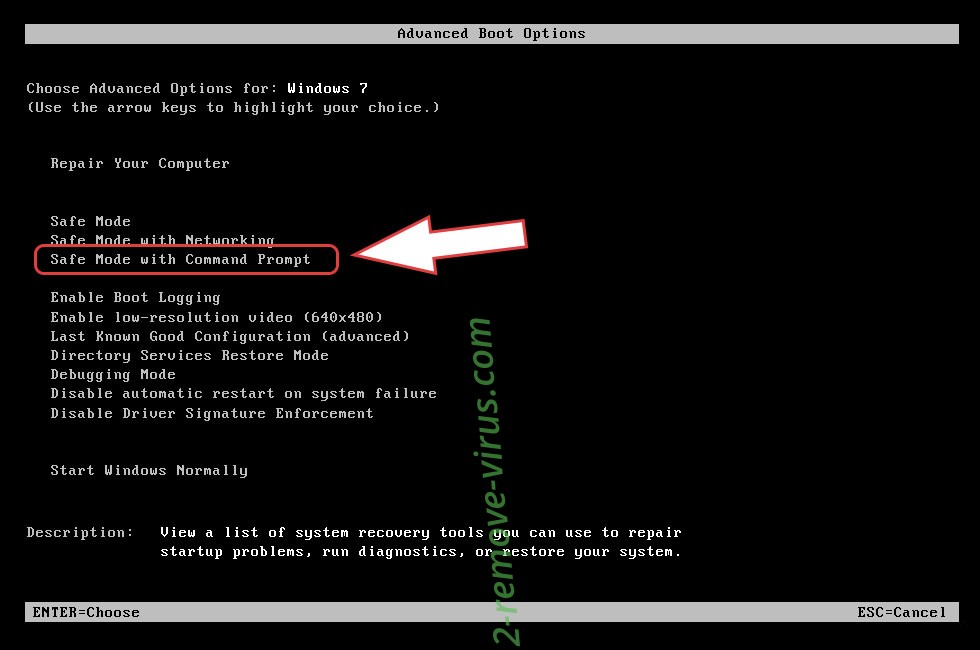
- Start tapping F8 when your PC starts loading.
- Under Advanced Boot Options, choose Safe Mode with Networking.
- Open your browser and download the anti-malware utility.
- Use the utility to remove BlackWizard ransomware (.BLWZ virus)
Remove BlackWizard ransomware (.BLWZ virus) from Windows 8/Windows 10
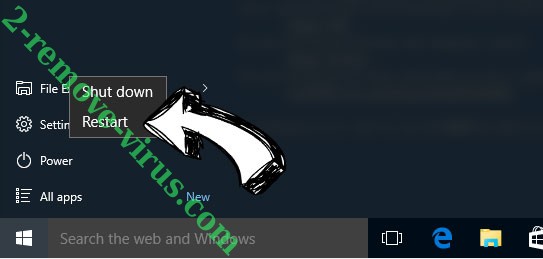
- On the Windows login screen, press the Power button.
- Tap and hold Shift and select Restart.
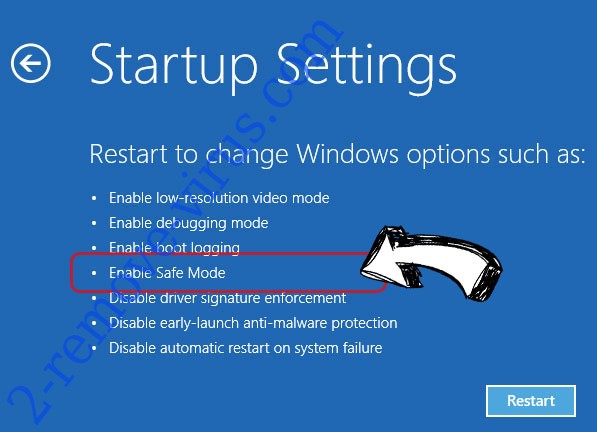
- Go to Troubleshoot → Advanced options → Start Settings.
- Choose Enable Safe Mode or Safe Mode with Networking under Startup Settings.
- Click Restart.
- Open your web browser and download the malware remover.
- Use the software to delete BlackWizard ransomware (.BLWZ virus)
Step 2. Restore Your Files using System Restore
Delete BlackWizard ransomware (.BLWZ virus) from Windows 7/Windows Vista/Windows XP
- Click Start and choose Shutdown.
- Select Restart and OK
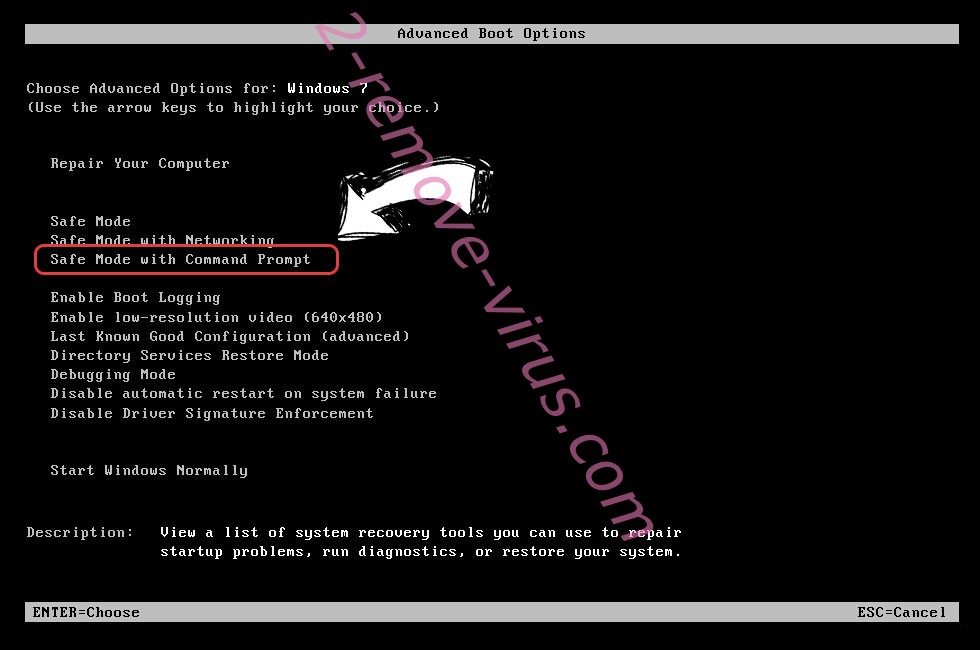
- When your PC starts loading, press F8 repeatedly to open Advanced Boot Options
- Choose Command Prompt from the list.
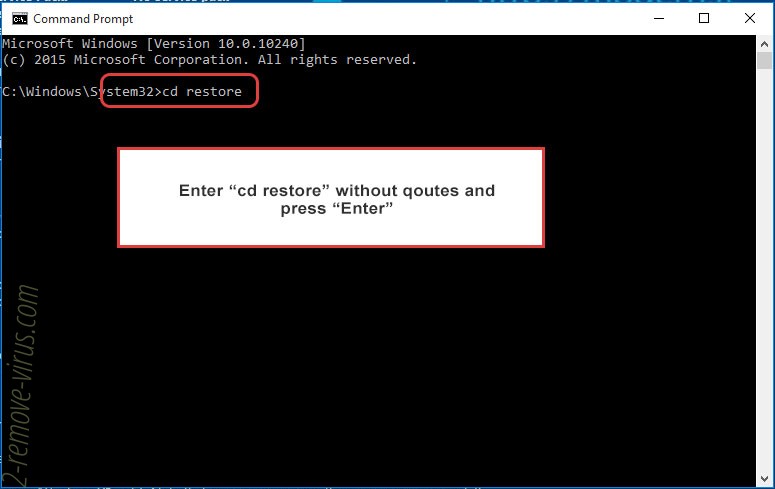
- Type in cd restore and tap Enter.
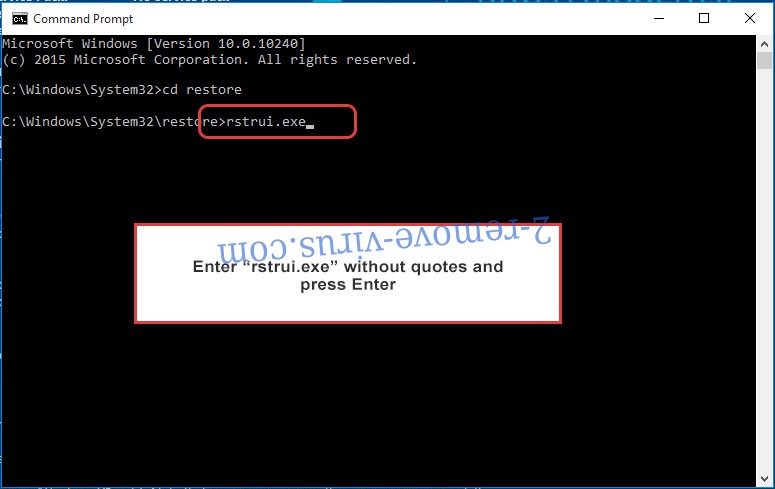
- Type in rstrui.exe and press Enter.
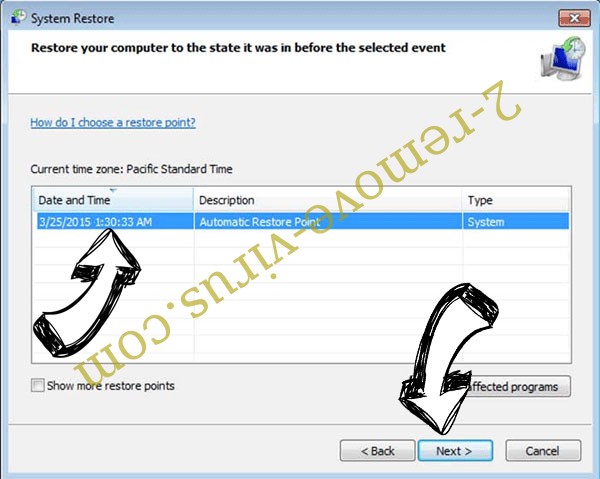
- Click Next in the new window and select the restore point prior to the infection.
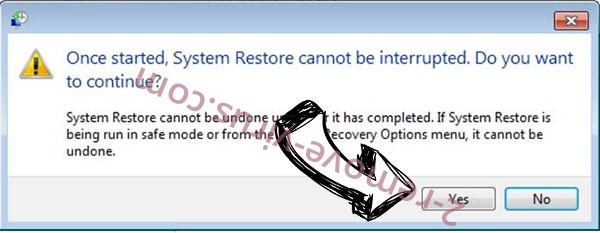
- Click Next again and click Yes to begin the system restore.
Delete BlackWizard ransomware (.BLWZ virus) from Windows 8/Windows 10
- Click the Power button on the Windows login screen.
- Press and hold Shift and click Restart.
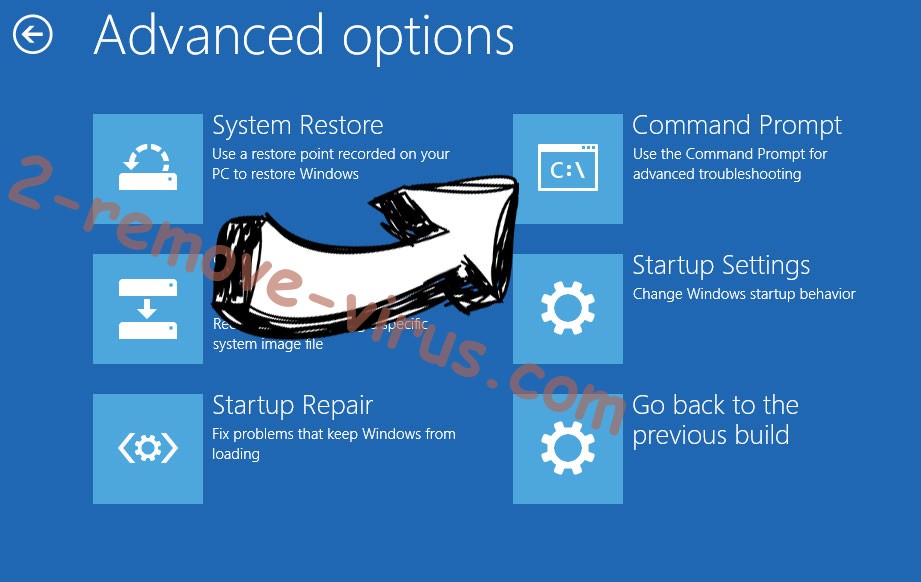
- Choose Troubleshoot and go to Advanced options.
- Select Command Prompt and click Restart.
- In Command Prompt, input cd restore and tap Enter.
- Type in rstrui.exe and tap Enter again.
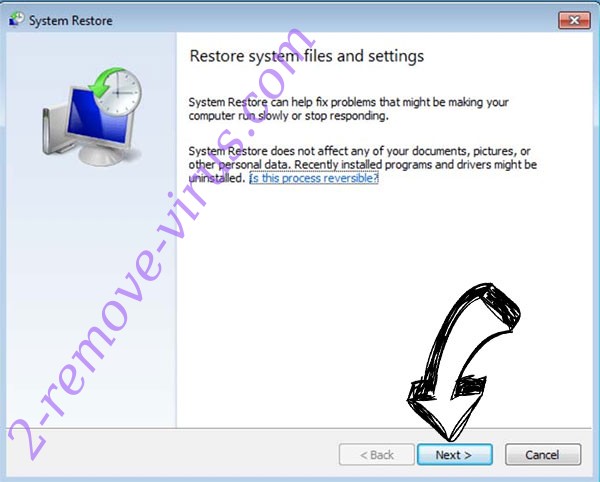
- Click Next in the new System Restore window.
- Choose the restore point prior to the infection.
- Click Next and then click Yes to restore your system.
Incoming search terms:
Site Disclaimer
2-remove-virus.com is not sponsored, owned, affiliated, or linked to malware developers or distributors that are referenced in this article. The article does not promote or endorse any type of malware. We aim at providing useful information that will help computer users to detect and eliminate the unwanted malicious programs from their computers. This can be done manually by following the instructions presented in the article or automatically by implementing the suggested anti-malware tools.
The article is only meant to be used for educational purposes. If you follow the instructions given in the article, you agree to be contracted by the disclaimer. We do not guarantee that the artcile will present you with a solution that removes the malign threats completely. Malware changes constantly, which is why, in some cases, it may be difficult to clean the computer fully by using only the manual removal instructions.