

The searchmonster.net redirect is a browser issue that becomes noticeable when normal search activity starts behaving differently. Instead of going directly to a familiar search engine, queries are quietly rerouted through searchmonster.net before results appear. This detour is not random. It is controlled by a browser hijacker that has modified how the browser handles search requests.

Unlike obvious threats, the searchmonster.net redirect does not usually interrupt browsing completely. Pages still load, and results still appear, which can make the issue easy to overlook at first. However, the way those results are delivered is no longer neutral. The redirect acts as a middle layer, deciding how traffic is routed and what content is prioritized.
The page connected to searchmonster.net may resemble a basic search interface, but it does not function as a genuine search provider. Instead, it forwards queries to other engines while retaining control over the process. This allows it to influence outcomes, such as inserting promotional links or steering users toward certain websites.
A common pattern with the searchmonster.net redirect is that browser preferences seem unreliable. You might select a preferred search engine, but the change does not hold. Searches continue to pass through searchmonster.net regardless of visible settings. This happens because the hijacker enforces its configuration behind the scenes.
Another effect is subtle disruption. You may notice brief flashes of unfamiliar pages, unexpected redirects when clicking results, or links opening in ways that feel slightly off. These small inconsistencies are signs that browsing behavior is being manipulated.
There is also a data-related aspect to consider. When searches are routed through searchmonster.net, queries are processed by a third-party system before reaching the final destination. This means that search terms and browsing patterns may be collected and used for advertising or other purposes.
While the redirect does not directly damage files or encrypt data, it reduces control over the browsing experience and increases exposure to content that may not be trustworthy.
How the searchmonster.net redirect appears and how to avoid it
The searchmonster.net redirect is typically introduced indirectly rather than installed on purpose. It is often linked to browser extensions or software packages that include additional components. These components may not be clearly explained during installation.
One of the more common entry points is through extensions that appear to offer helpful features, such as search tools or browsing enhancements. Once installed, they may request permission to manage search settings. These permissions allow the redirect to take control.
Another route involves bundled installations. Free software downloaded from unofficial sources may include extra elements that modify browser behavior. If installation steps are completed quickly using default settings, these additions can be enabled without being noticed.
What makes this type of issue persistent is that the source continues to reapply its settings. Even if changes are made manually, the redirect can return because the underlying component remains active.
Avoiding the searchmonster.net redirect comes down to careful installation practices. Reviewing each step during setup and choosing custom options can help reveal any additional components before they are installed.
It is also useful to be selective with browser extensions. Checking what permissions an extension requests can provide insight into whether it may alter search behavior. Tools that require control over search settings should be examined more closely.
Remove searchmonster.net redirect
If the redirect is already present, identifying recently added extensions or programs is usually the first step. Removing unfamiliar items and restoring browser settings will generally stop the behavior and return the browser to normal operation.
It’s a good idea to use an anti-virus program to remove searchmonster.net redirect.
Offers
Download Removal Toolto scan for searchmonster.net redirectUse our recommended removal tool to scan for searchmonster.net redirect. Trial version of provides detection of computer threats like searchmonster.net redirect and assists in its removal for FREE. You can delete detected registry entries, files and processes yourself or purchase a full version.
More information about SpyWarrior and Uninstall Instructions. Please review SpyWarrior EULA and Privacy Policy. SpyWarrior scanner is free. If it detects a malware, purchase its full version to remove it.

WiperSoft Review Details WiperSoft (www.wipersoft.com) is a security tool that provides real-time security from potential threats. Nowadays, many users tend to download free software from the Intern ...
Download|moreIs MacKeeper a virus? MacKeeper is not a virus, nor is it a scam. While there are various opinions about the program on the Internet, a lot of the people who so notoriously hate the program have neve ...
Download|moreWhile the creators of MalwareBytes anti-malware have not been in this business for long time, they make up for it with their enthusiastic approach. Statistic from such websites like CNET shows that th ...
Download|more



Quick Menu
Step 1. Uninstall searchmonster.net redirect and related programs.
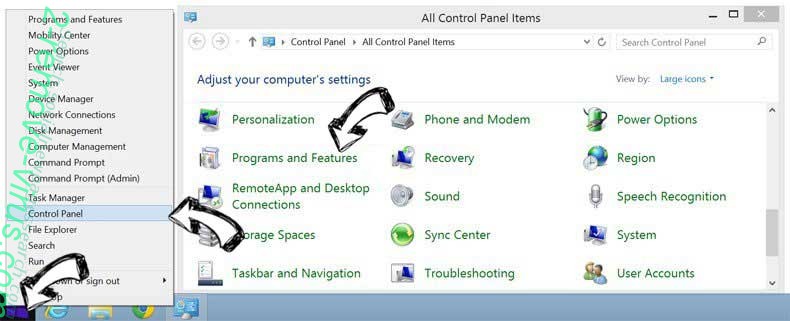
Remove searchmonster.net redirect from Windows 8
Right-click in the lower left corner of the screen. Once Quick Access Menu shows up, select Control Panel choose Programs and Features and select to Uninstall a software.
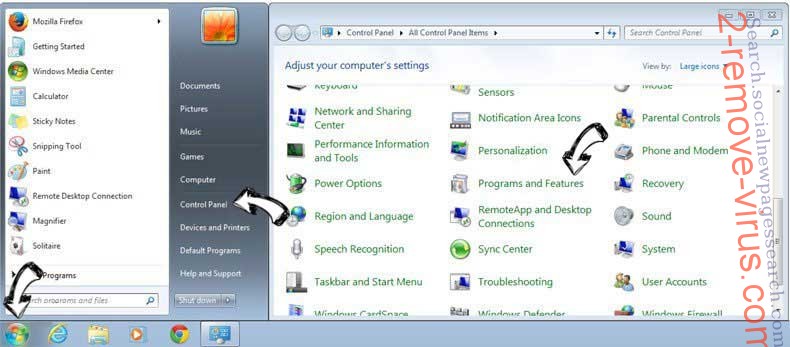
Uninstall searchmonster.net redirect from Windows 7
Click Start → Control Panel → Programs and Features → Uninstall a program.
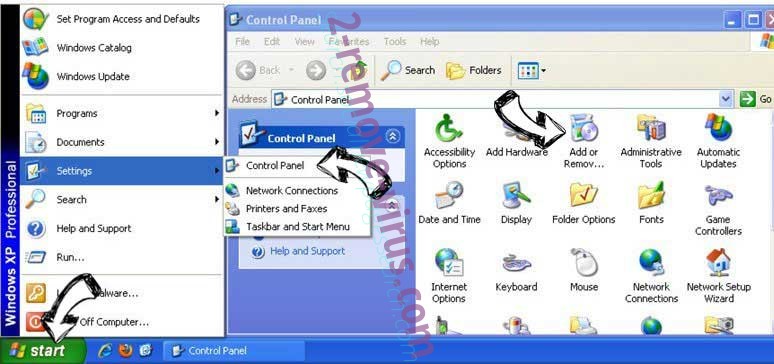
Delete searchmonster.net redirect from Windows XP
Click Start → Settings → Control Panel. Locate and click → Add or Remove Programs.
Remove searchmonster.net redirect from Mac OS X
Click Go button at the top left of the screen and select Applications. Select applications folder and look for searchmonster.net redirect or any other suspicious software. Now right click on every of such entries and select Move to Trash, then right click the Trash icon and select Empty Trash.

Step 2. Delete searchmonster.net redirect from your browsers
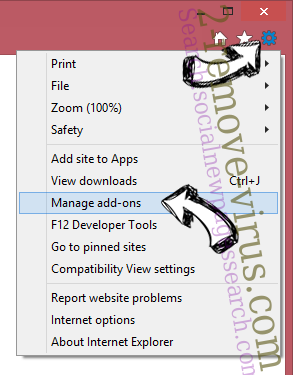
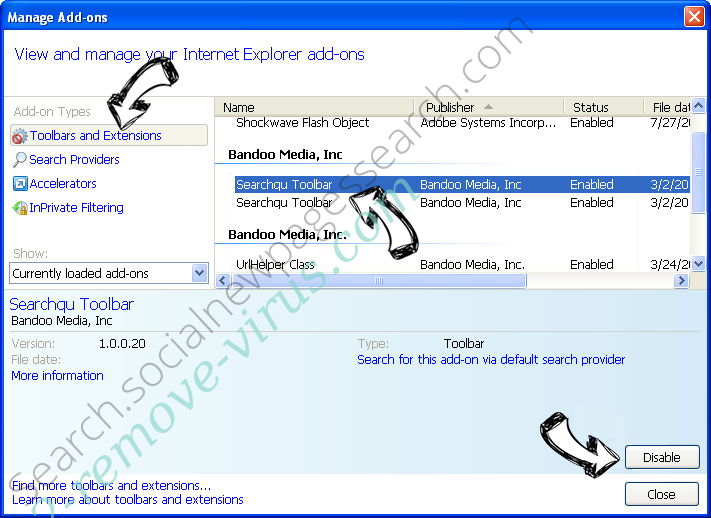
Terminate the unwanted extensions from Internet Explorer
- Tap the Gear icon and go to Manage Add-ons.
- Pick Toolbars and Extensions and eliminate all suspicious entries (other than Microsoft, Yahoo, Google, Oracle or Adobe)
- Leave the window.
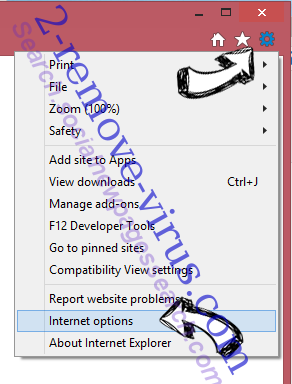
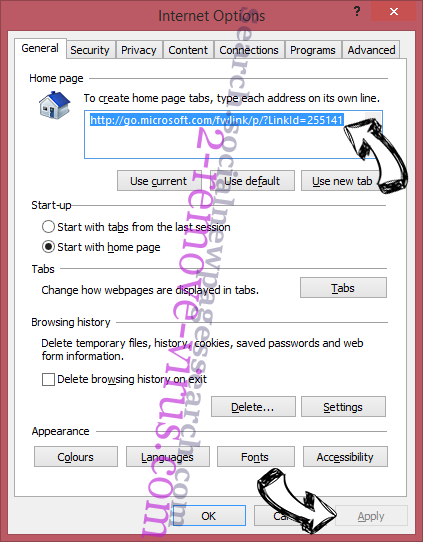
Change Internet Explorer homepage if it was changed by virus:
- Tap the gear icon (menu) on the top right corner of your browser and click Internet Options.
- In General Tab remove malicious URL and enter preferable domain name. Press Apply to save changes.
Reset your browser
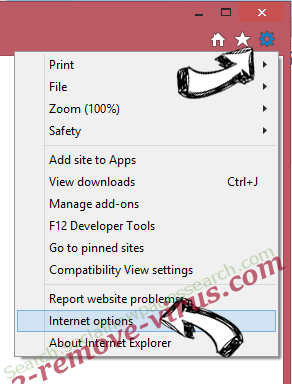
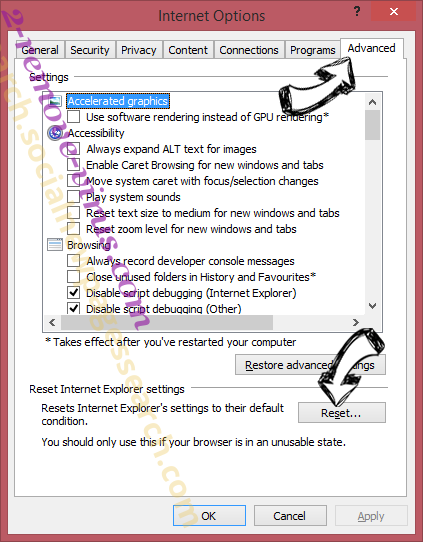
- Click the Gear icon and move to Internet Options.
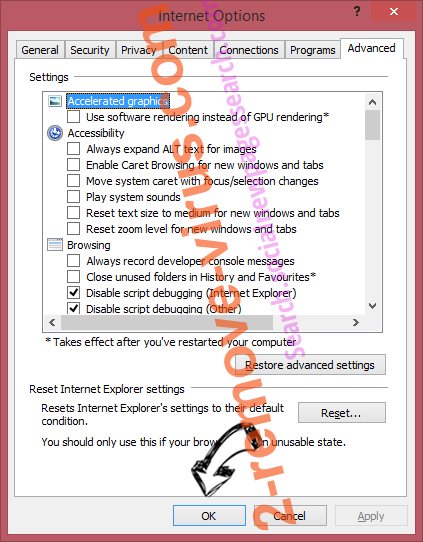
- Open the Advanced tab and press Reset.
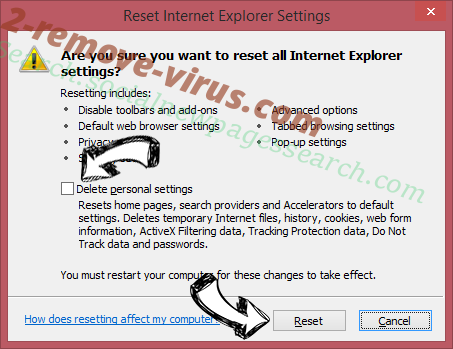
- Choose Delete personal settings and pick Reset one more time.
- Tap Close and leave your browser.
- If you were unable to reset your browsers, employ a reputable anti-malware and scan your entire computer with it.
Erase searchmonster.net redirect from Google Chrome
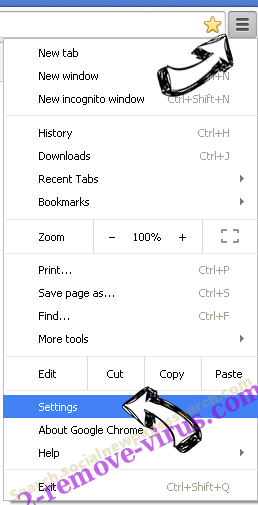
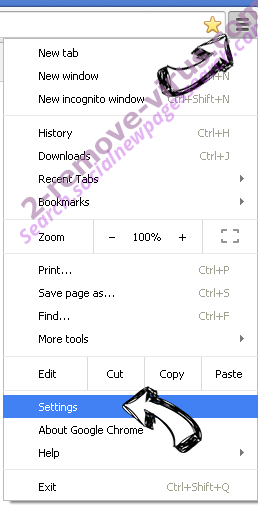
- Access menu (top right corner of the window) and pick Settings.
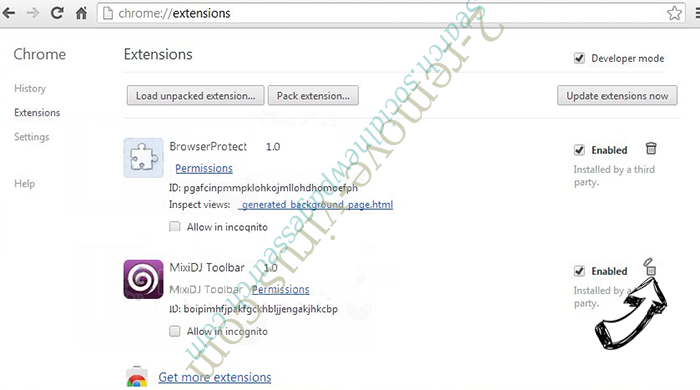
- Choose Extensions.
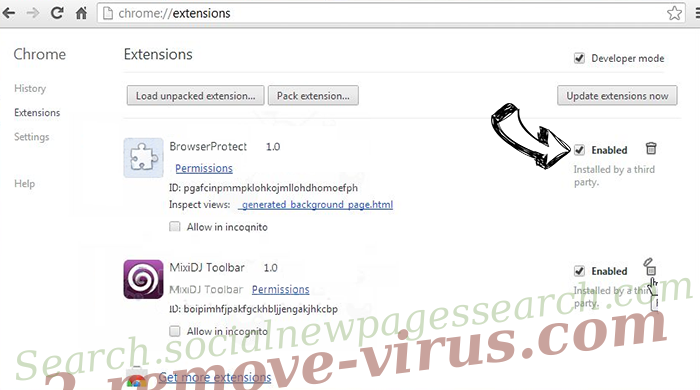
- Eliminate the suspicious extensions from the list by clicking the Trash bin next to them.
- If you are unsure which extensions to remove, you can disable them temporarily.
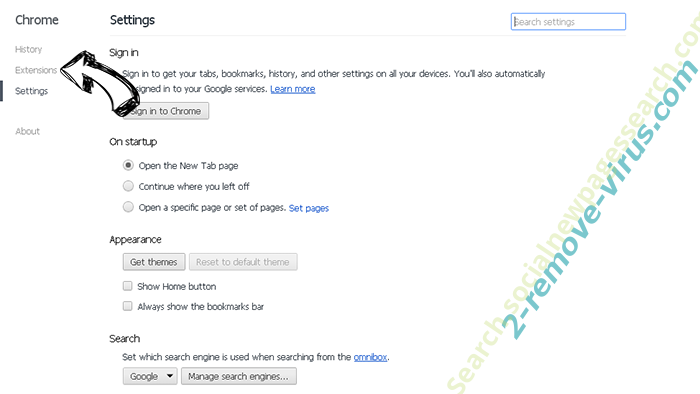
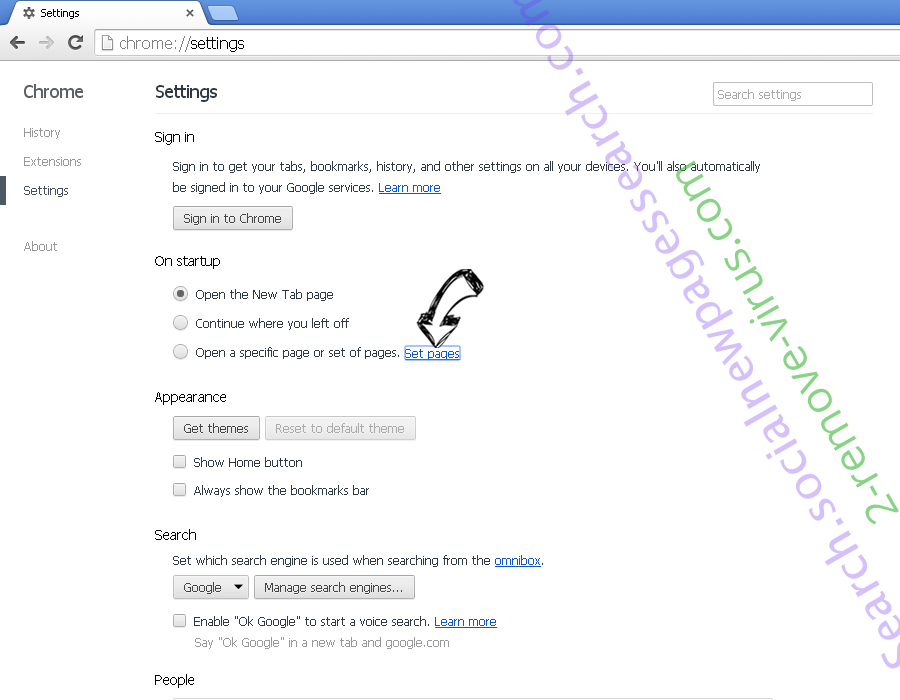
Reset Google Chrome homepage and default search engine if it was hijacker by virus
- Press on menu icon and click Settings.
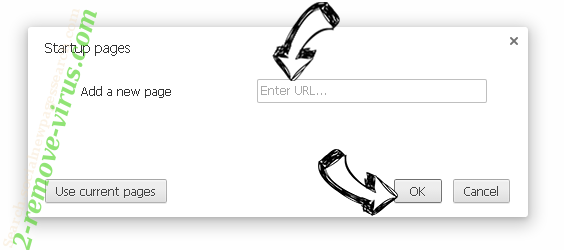
- Look for the “Open a specific page” or “Set Pages” under “On start up” option and click on Set pages.
- In another window remove malicious search sites and enter the one that you want to use as your homepage.
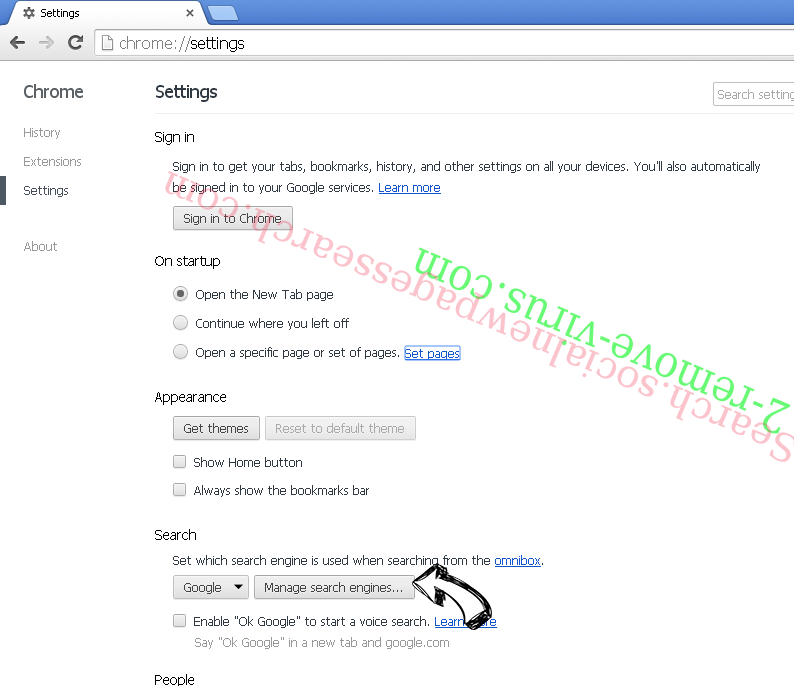
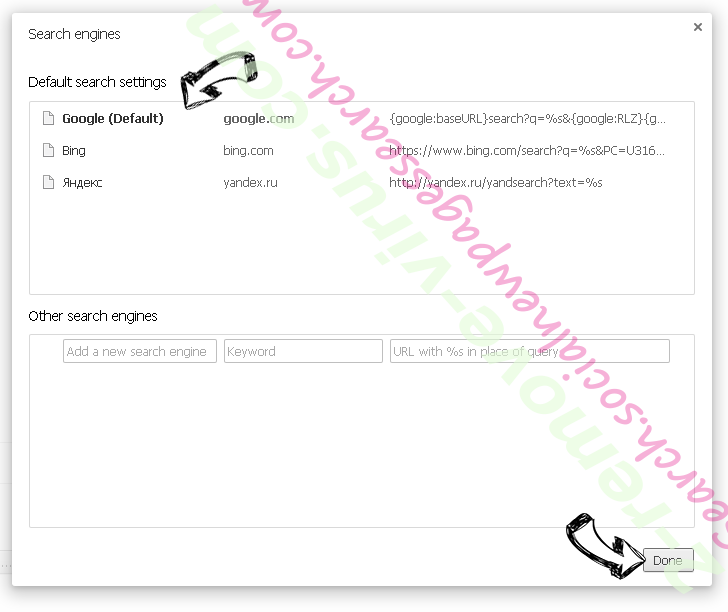
- Under the Search section choose Manage Search engines. When in Search Engines..., remove malicious search websites. You should leave only Google or your preferred search name.
Reset your browser
- If the browser still does not work the way you prefer, you can reset its settings.
- Open menu and navigate to Settings.
- Press Reset button at the end of the page.
- Tap Reset button one more time in the confirmation box.
- If you cannot reset the settings, purchase a legitimate anti-malware and scan your PC.
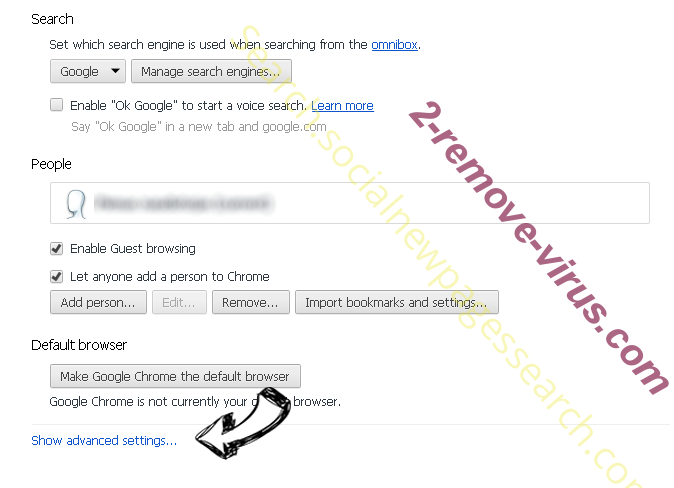
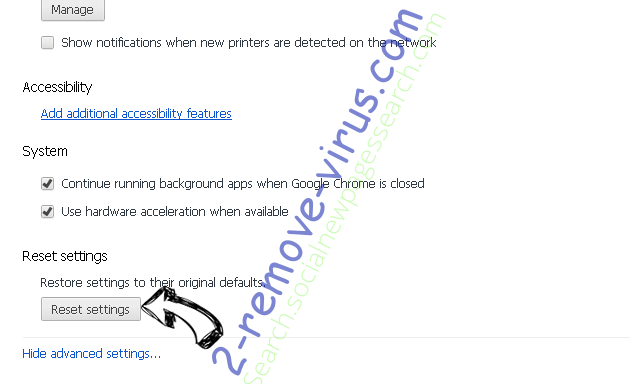
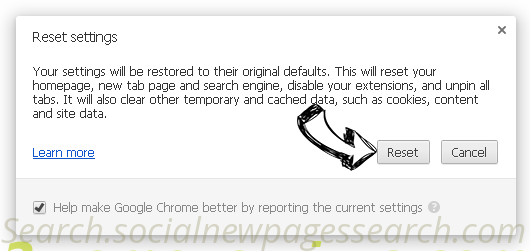
Remove searchmonster.net redirect from Mozilla Firefox
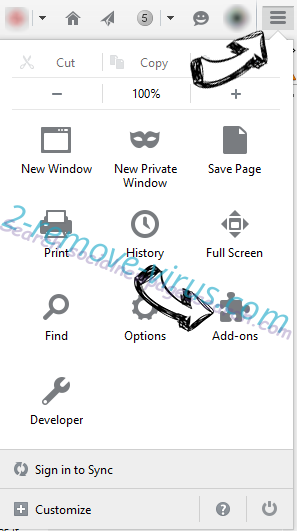
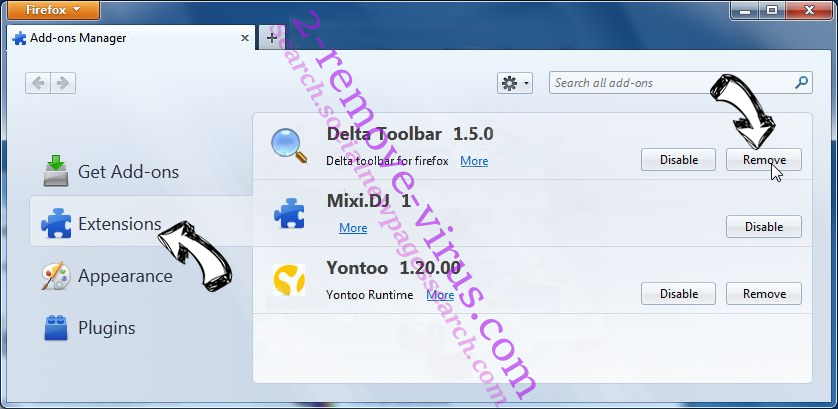
- In the top right corner of the screen, press menu and choose Add-ons (or tap Ctrl+Shift+A simultaneously).
- Move to Extensions and Add-ons list and uninstall all suspicious and unknown entries.
Change Mozilla Firefox homepage if it was changed by virus:
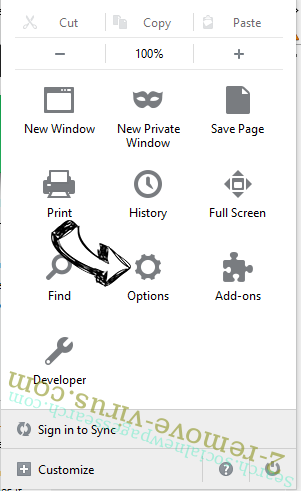
- Tap on the menu (top right corner), choose Options.
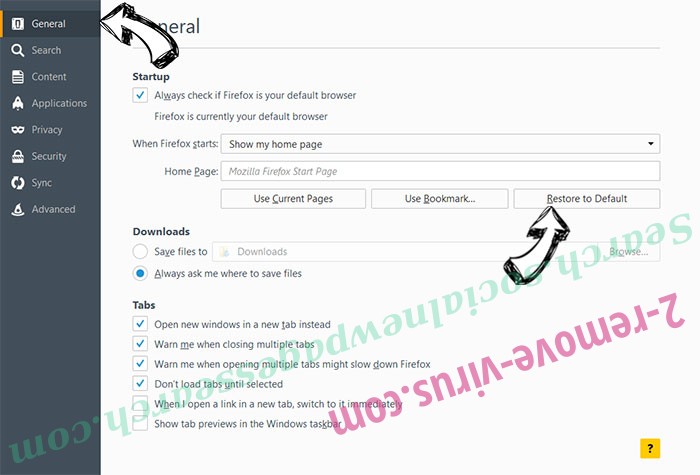
- On General tab delete malicious URL and enter preferable website or click Restore to default.
- Press OK to save these changes.
Reset your browser
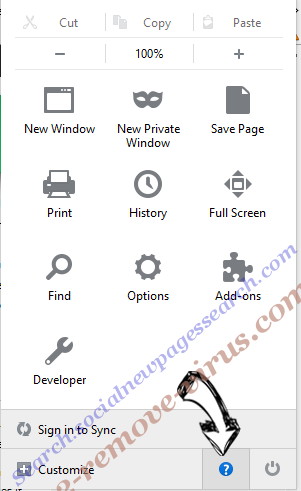
- Open the menu and tap Help button.
- Select Troubleshooting Information.
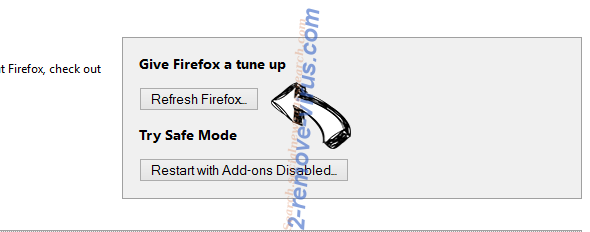
- Press Refresh Firefox.
- In the confirmation box, click Refresh Firefox once more.
- If you are unable to reset Mozilla Firefox, scan your entire computer with a trustworthy anti-malware.


Uninstall searchmonster.net redirect from Safari (Mac OS X)
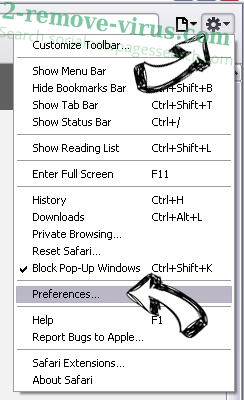
- Access the menu.
- Pick Preferences.
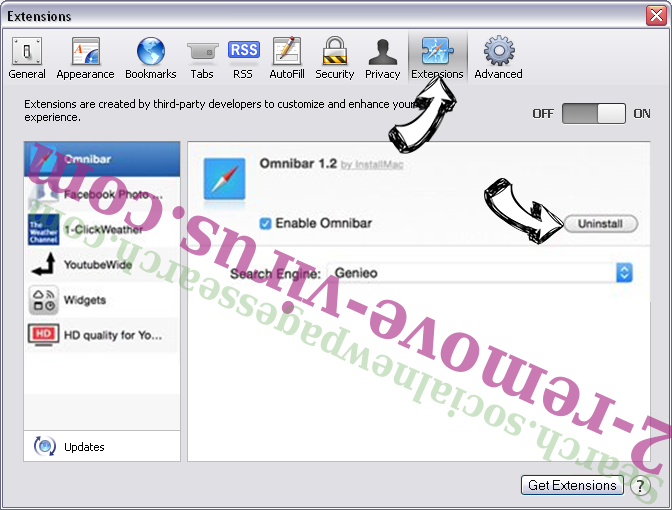
- Go to the Extensions Tab.
- Tap the Uninstall button next to the undesirable searchmonster.net redirect and get rid of all the other unknown entries as well. If you are unsure whether the extension is reliable or not, simply uncheck the Enable box in order to disable it temporarily.
- Restart Safari.
Reset your browser
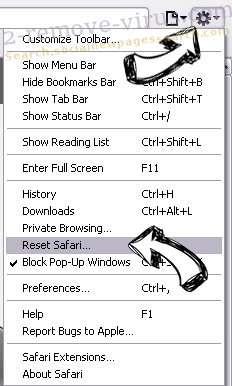
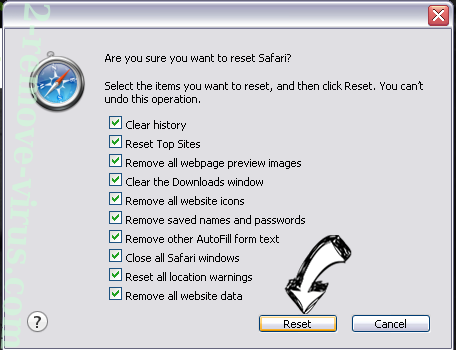
- Tap the menu icon and choose Reset Safari.
- Pick the options which you want to reset (often all of them are preselected) and press Reset.
- If you cannot reset the browser, scan your whole PC with an authentic malware removal software.
Incoming search terms:
Site Disclaimer
2-remove-virus.com is not sponsored, owned, affiliated, or linked to malware developers or distributors that are referenced in this article. The article does not promote or endorse any type of malware. We aim at providing useful information that will help computer users to detect and eliminate the unwanted malicious programs from their computers. This can be done manually by following the instructions presented in the article or automatically by implementing the suggested anti-malware tools.
The article is only meant to be used for educational purposes. If you follow the instructions given in the article, you agree to be contracted by the disclaimer. We do not guarantee that the artcile will present you with a solution that removes the malign threats completely. Malware changes constantly, which is why, in some cases, it may be difficult to clean the computer fully by using only the manual removal instructions.